Ideas tutorial
Explore app features
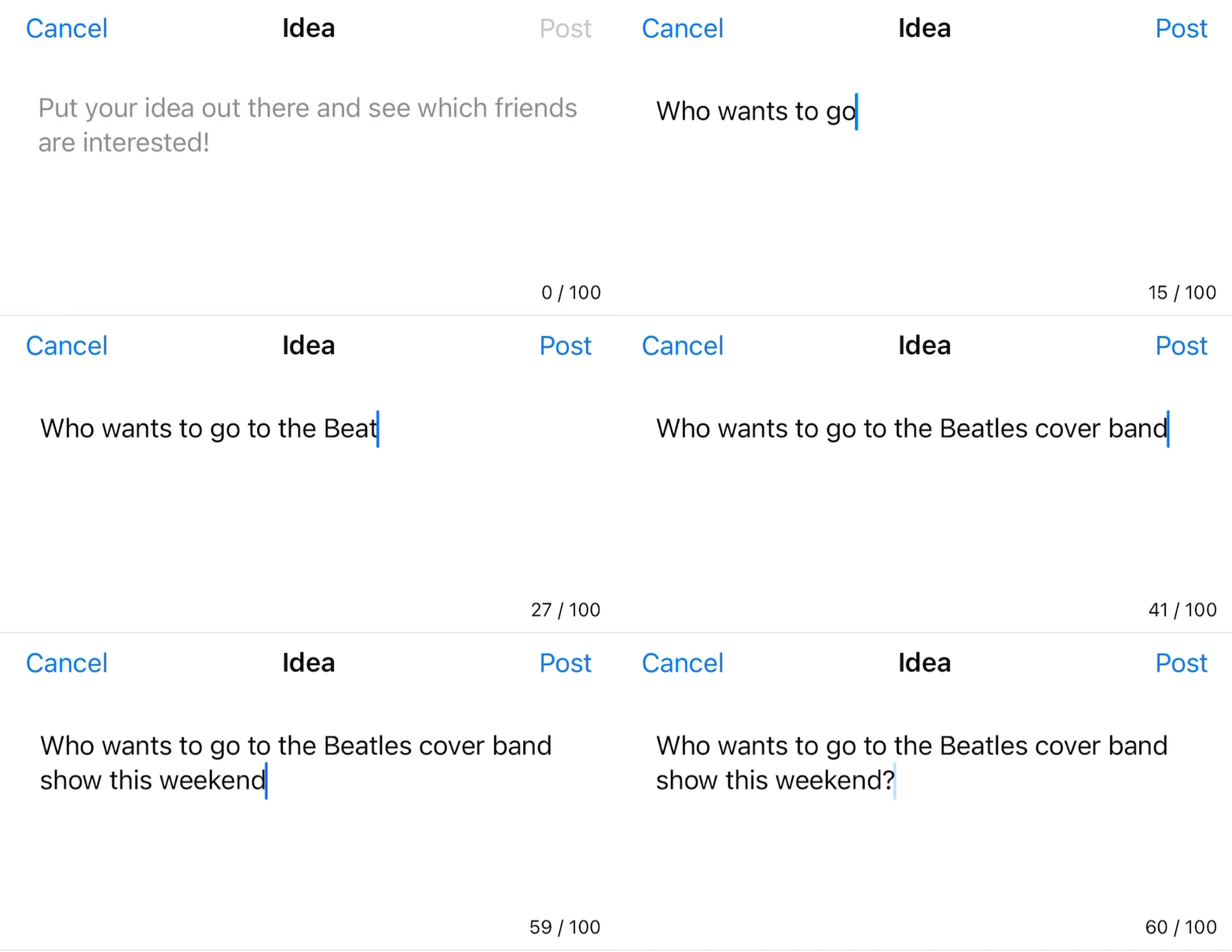
An Idea lets you gauge interest in something that you'd like to do.
If enough friends like your Idea, take action on it. If not, forget about it. Only you can see the number of likes your Idea gets.
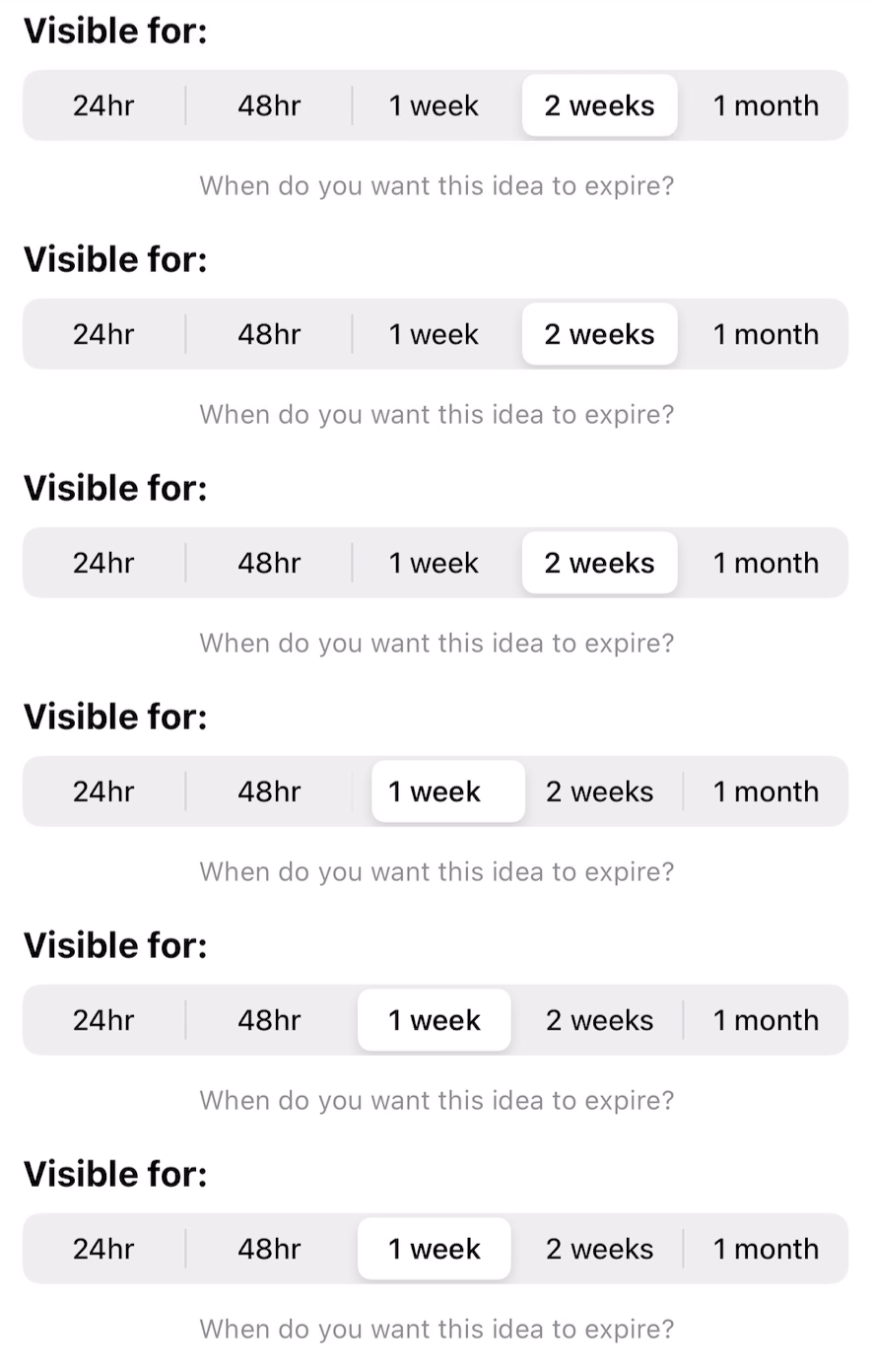
Select how long your Idea will be visible.
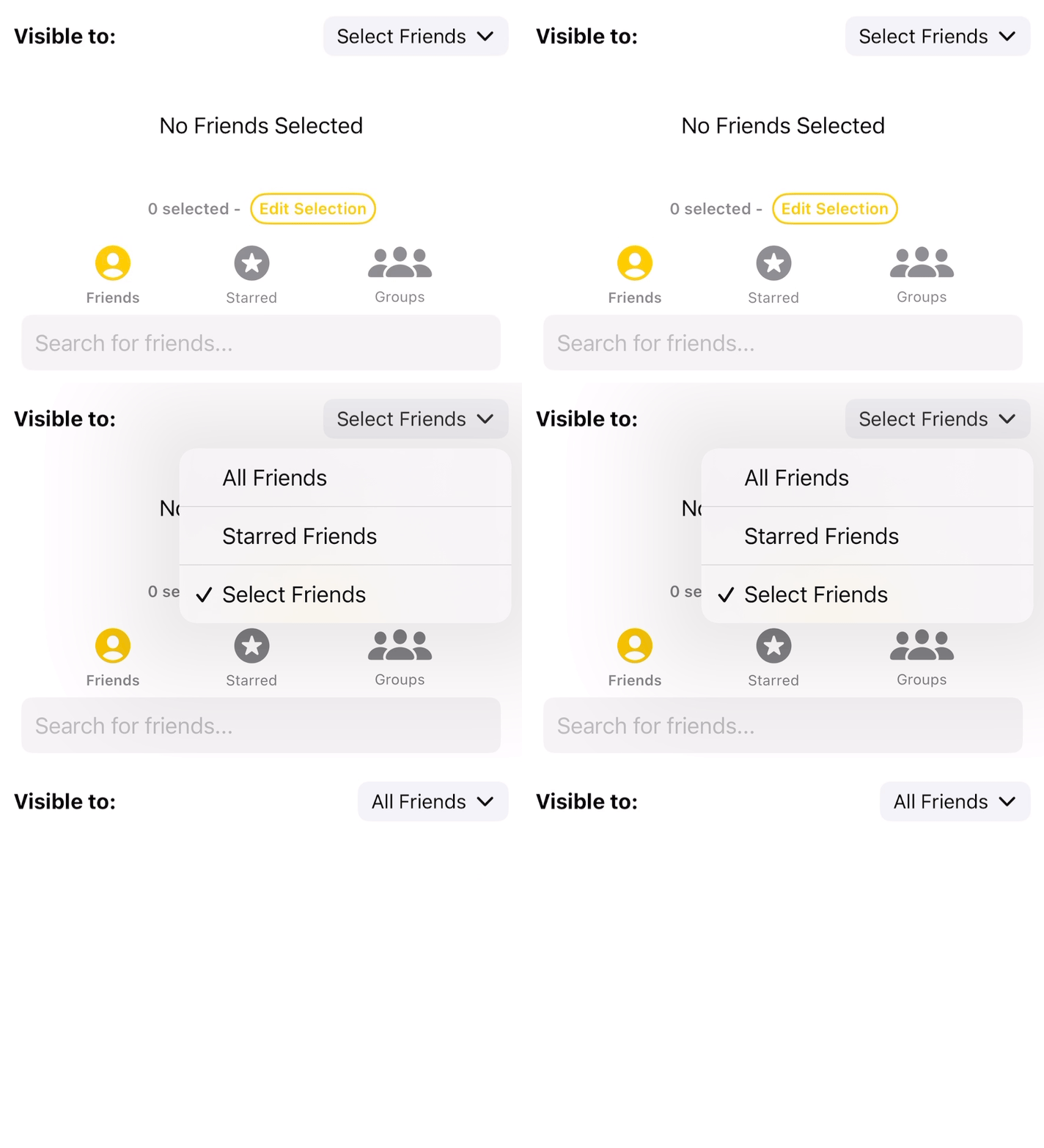
Select which friends can see your Idea.
Ideas display on your friend's Home screen as swipeable cards. If they like it, you get a notification. If they dismiss it, nothing happens. There's no commitment.

Click the app logo to see all your Ideas and how many likes they've received.

Available lets your friends know you're free at a certain time.
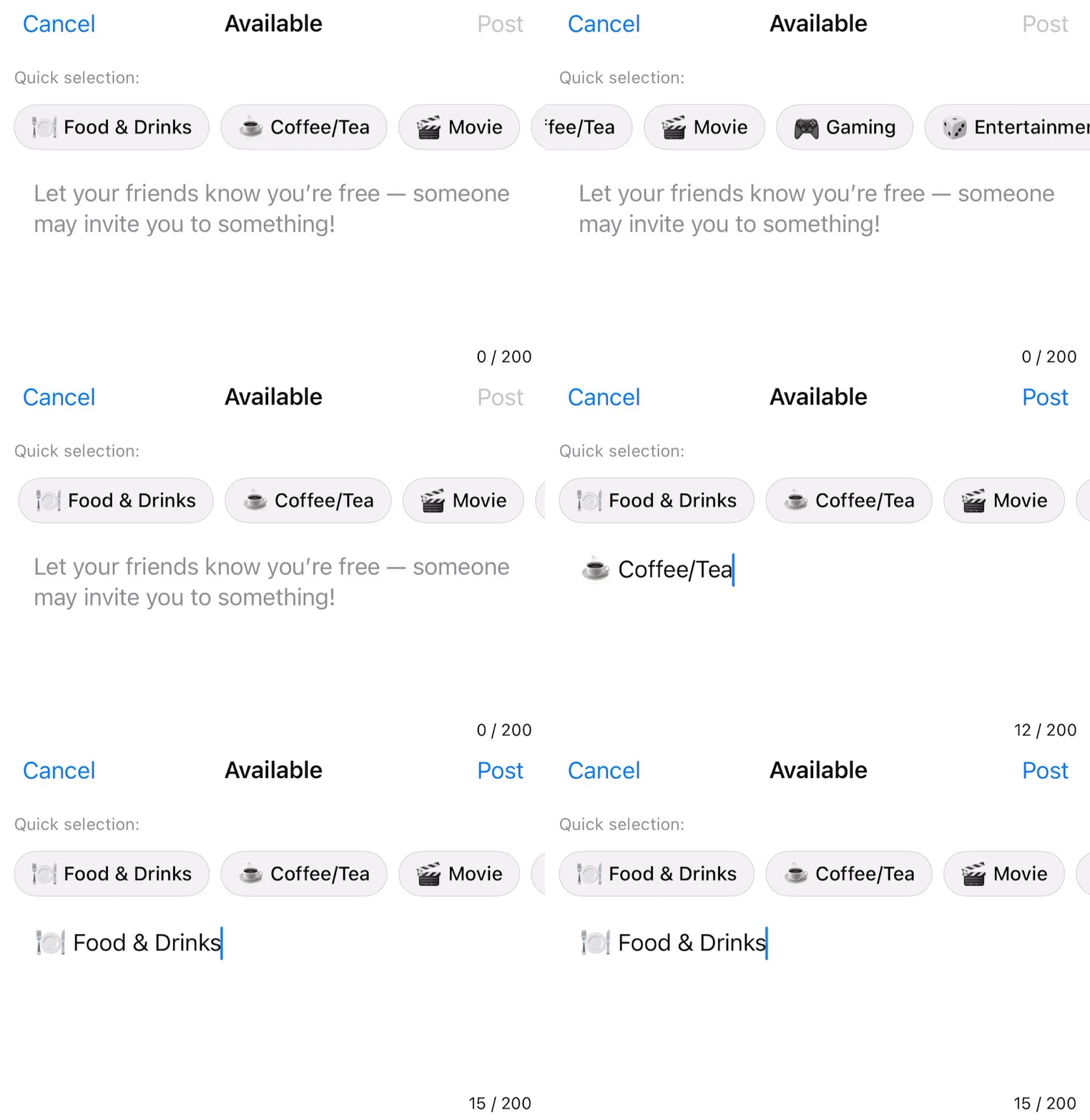
If they're available, they can let you know too. Start by specifying what you're in the mood for or leave it open ended.
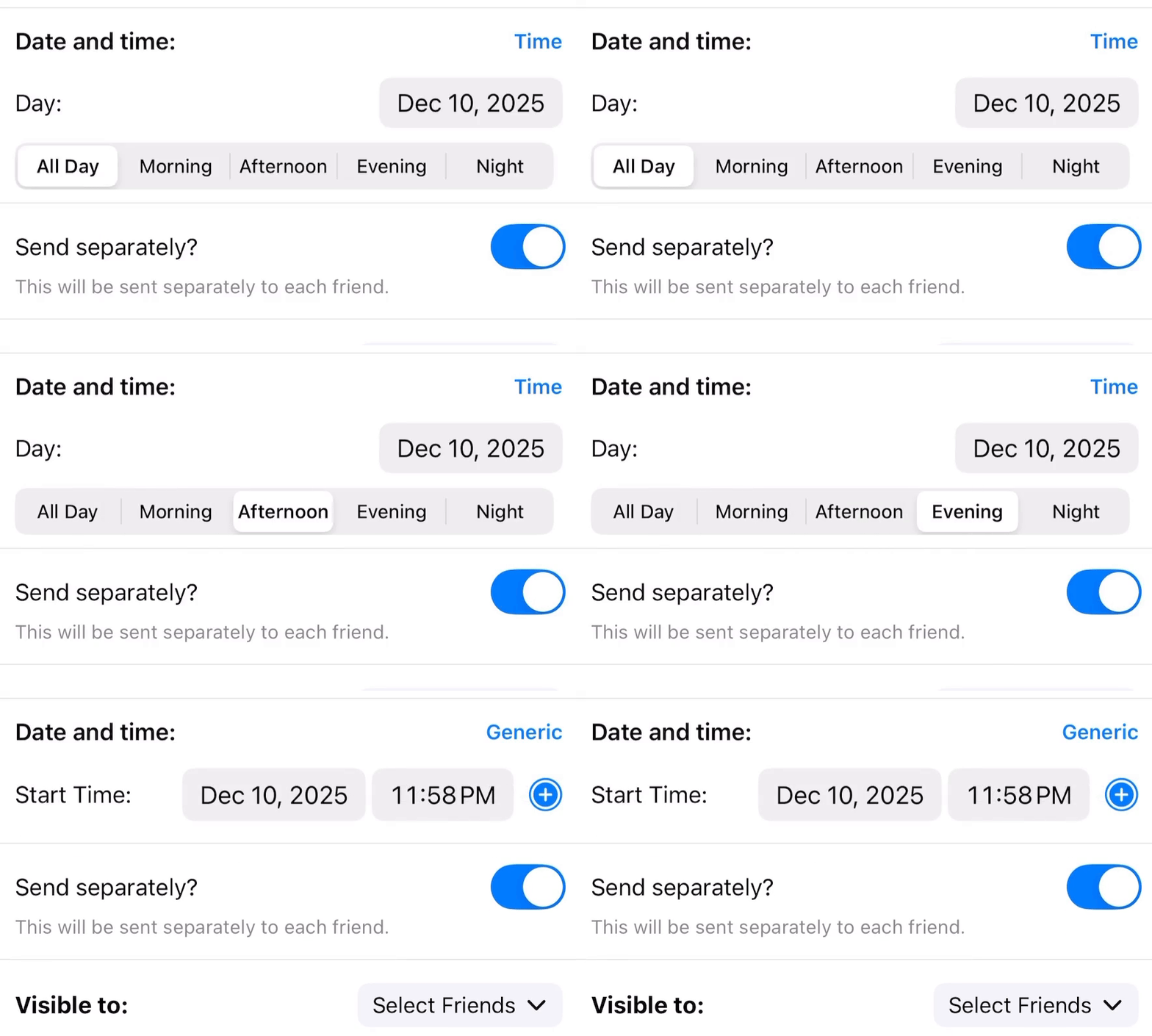
Select a specific time or a generic time like "Evening"
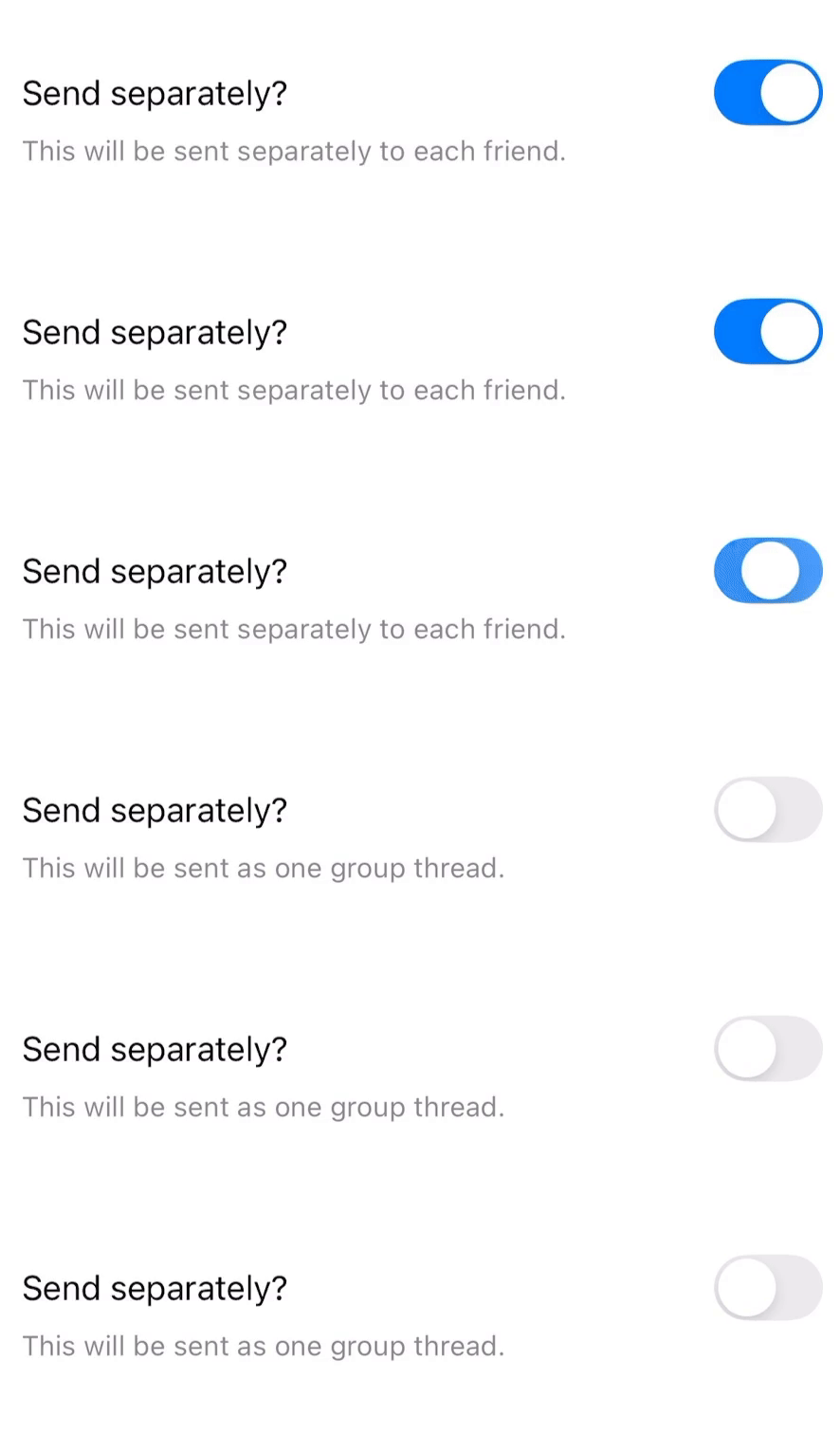
Available can be sent to each friend separately or to your friends collectively which allows everyone to see who's available.
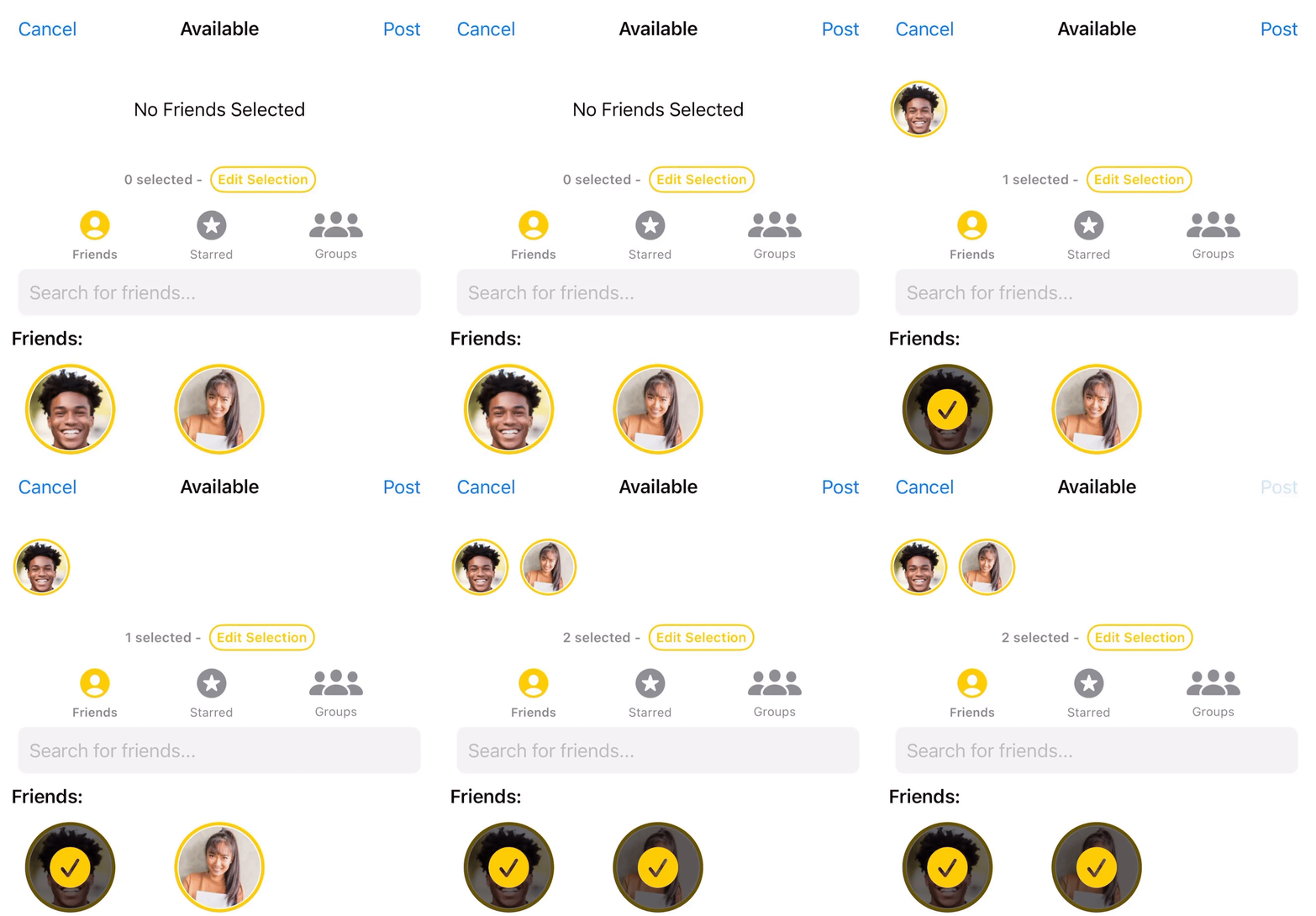
Select the friends that can see you're available.
Available will display on your friend's timeline with a yellow badge. They can tap "I'm Available" to notify you.

Tap your Available post to see responses and tap a profile to begin messaging.
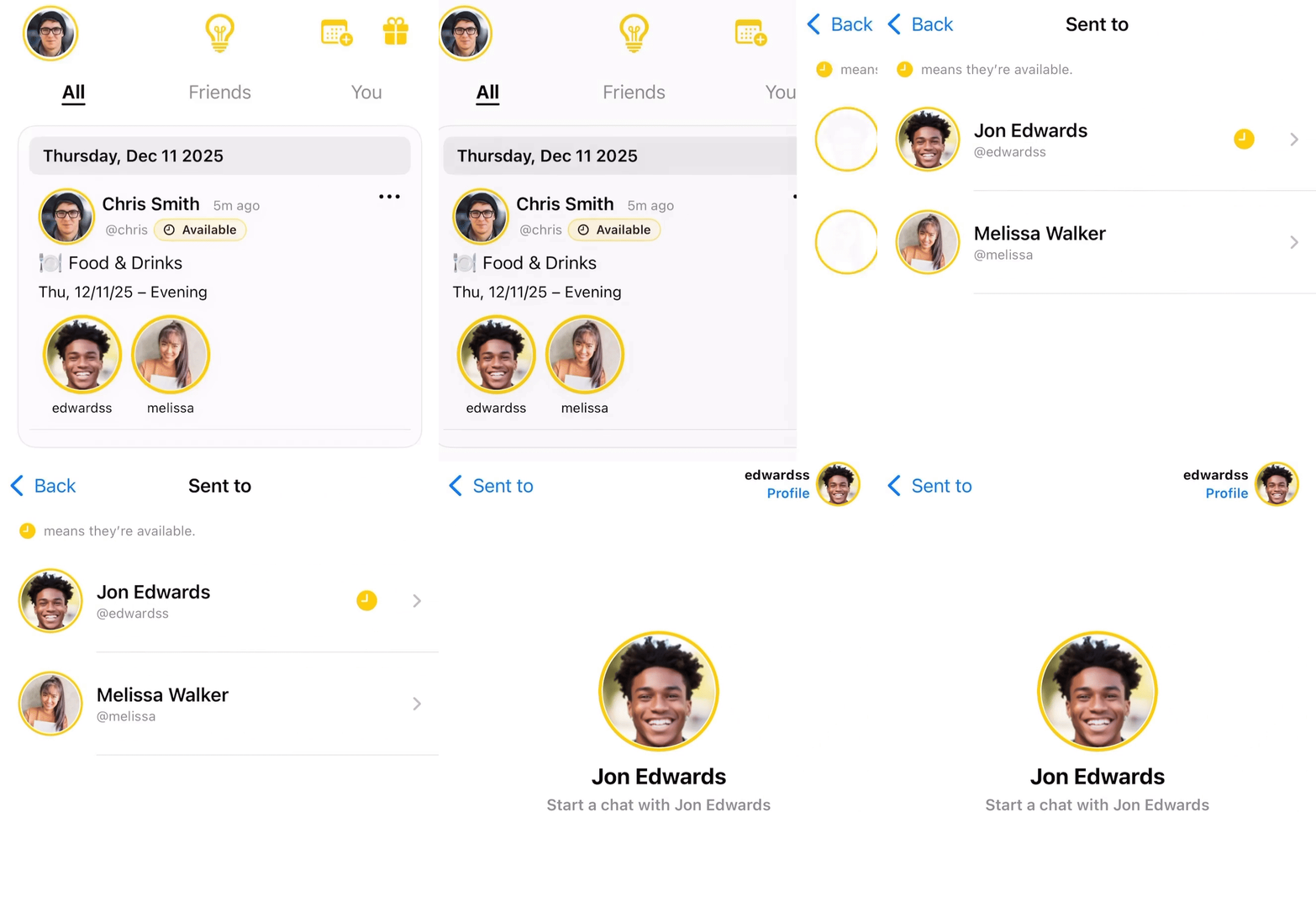
Activity lets you share what you're doing, so your friends can join if they're interested.
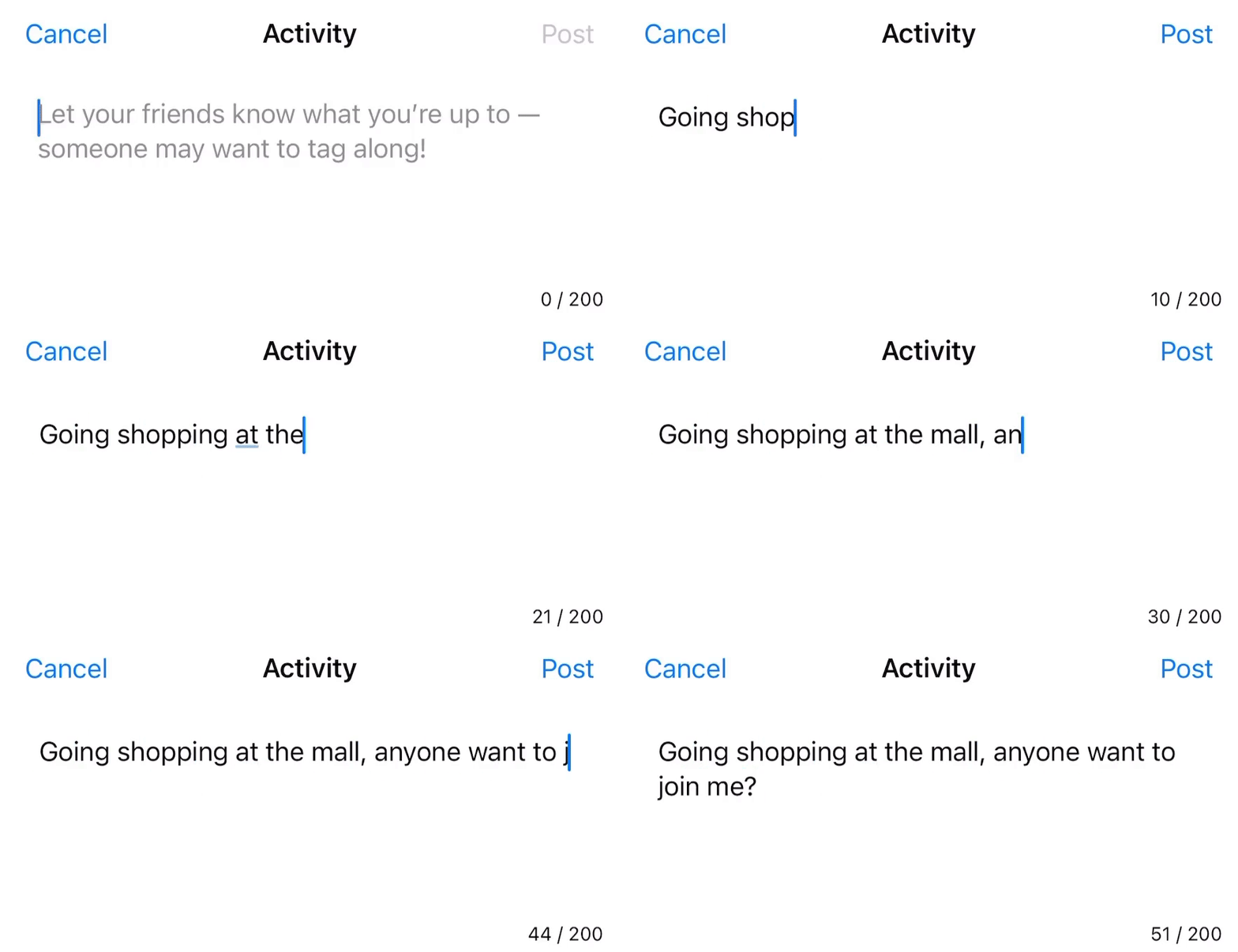
Select the time you're doing the activity.
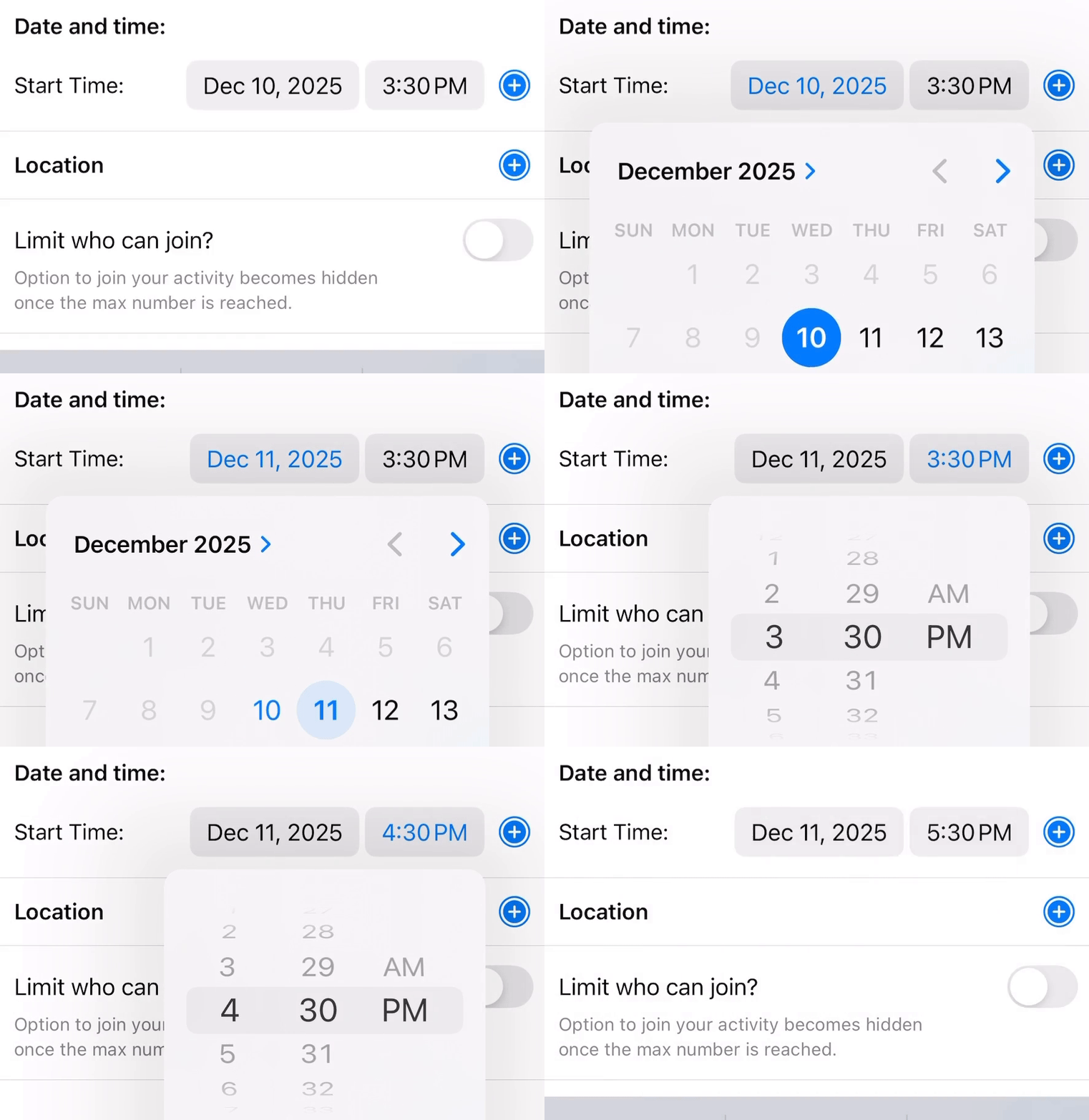
Set a limit on the number of friends that can join. When the limit is reached, the Activity cannot be joined.
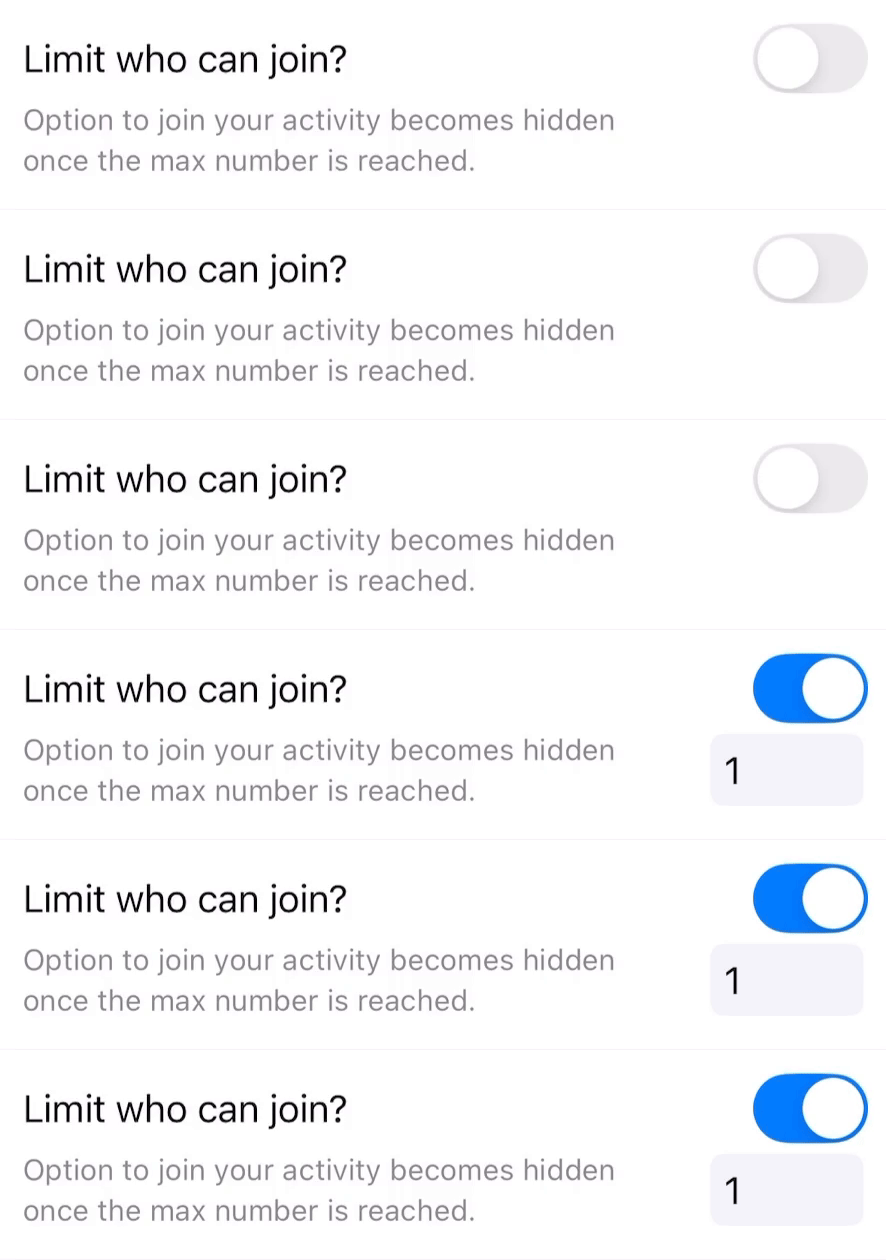
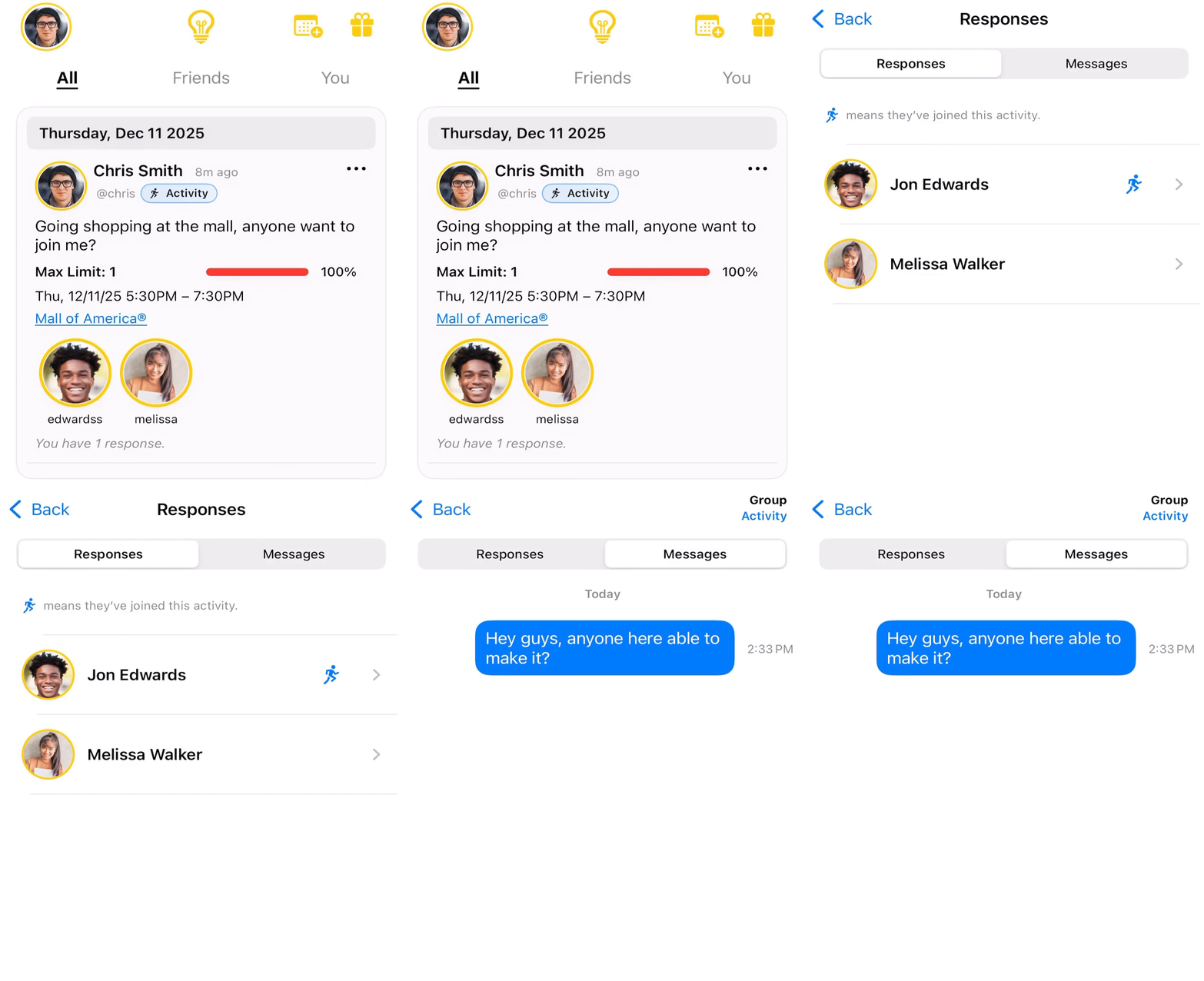
Activity can be sent to each friend separately or to your friends collectively which allows everyone to see who's joining and enables group messaging.
Select the friends that can see your activity.
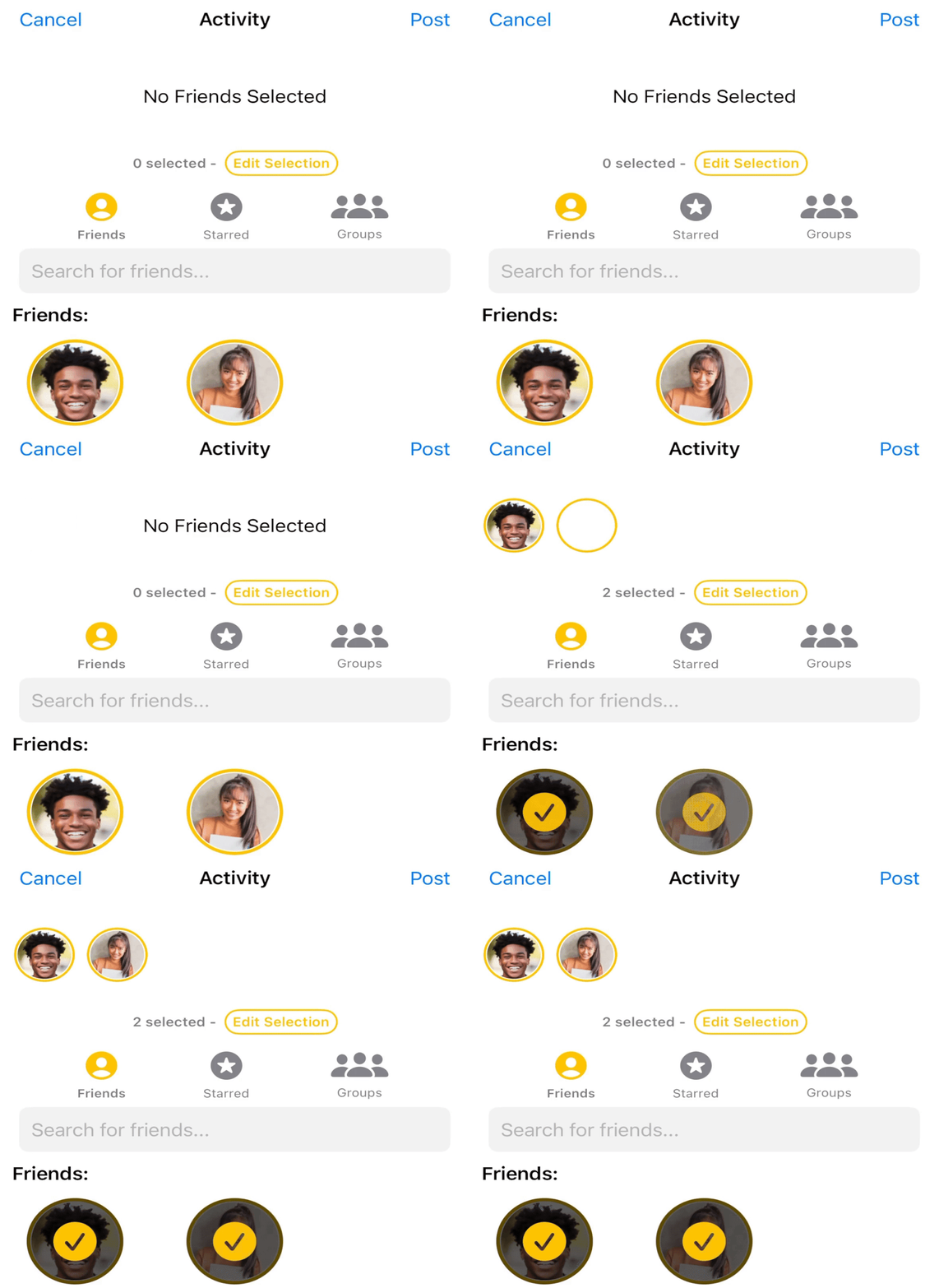
Activity will display on your friend's timeline with a blue badge. They can tap "Join" to notify you.
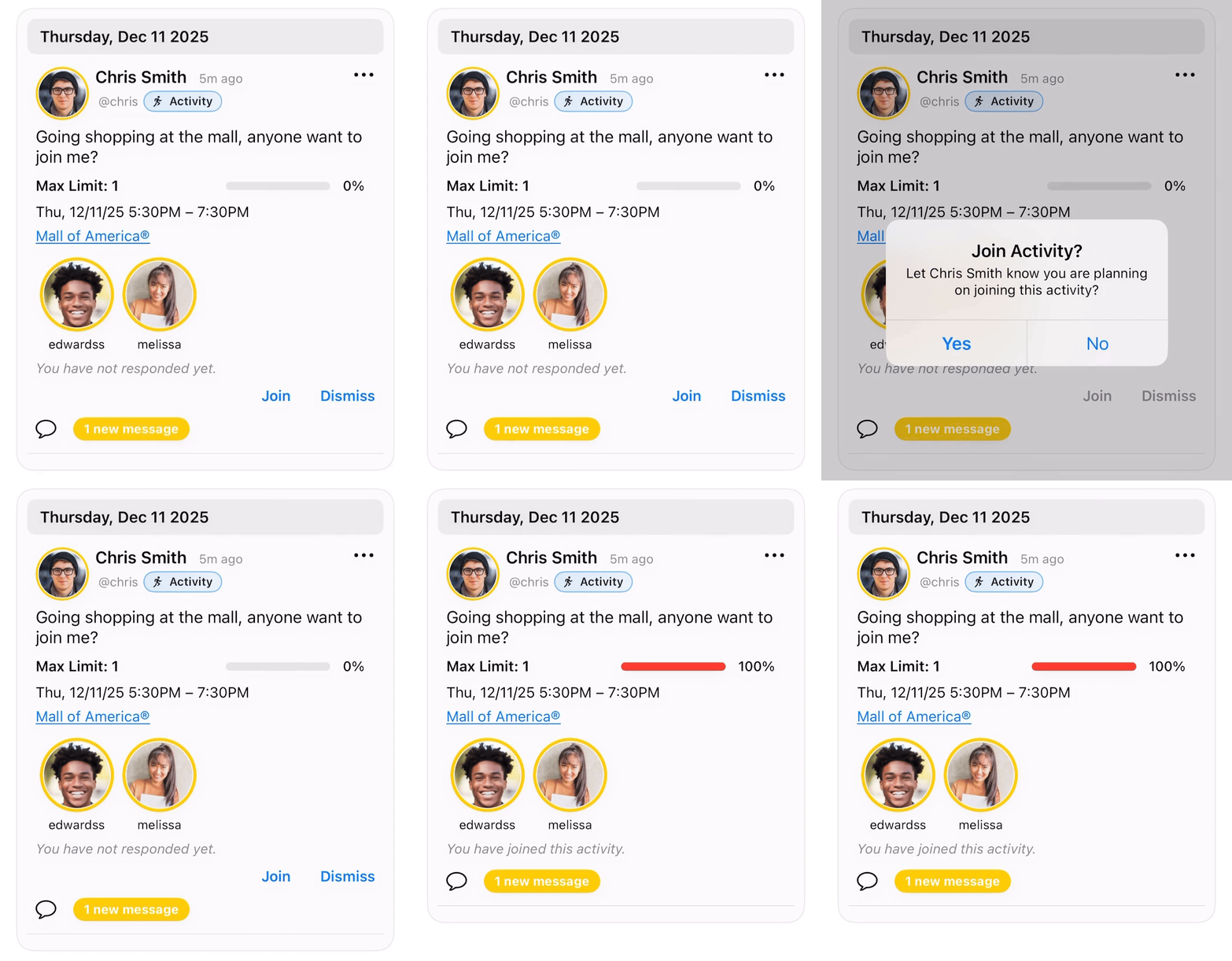
Tap your Activity to see responses and begin messaging.
Event lets you host a gathering for friends or Groups.

Select a time and location.
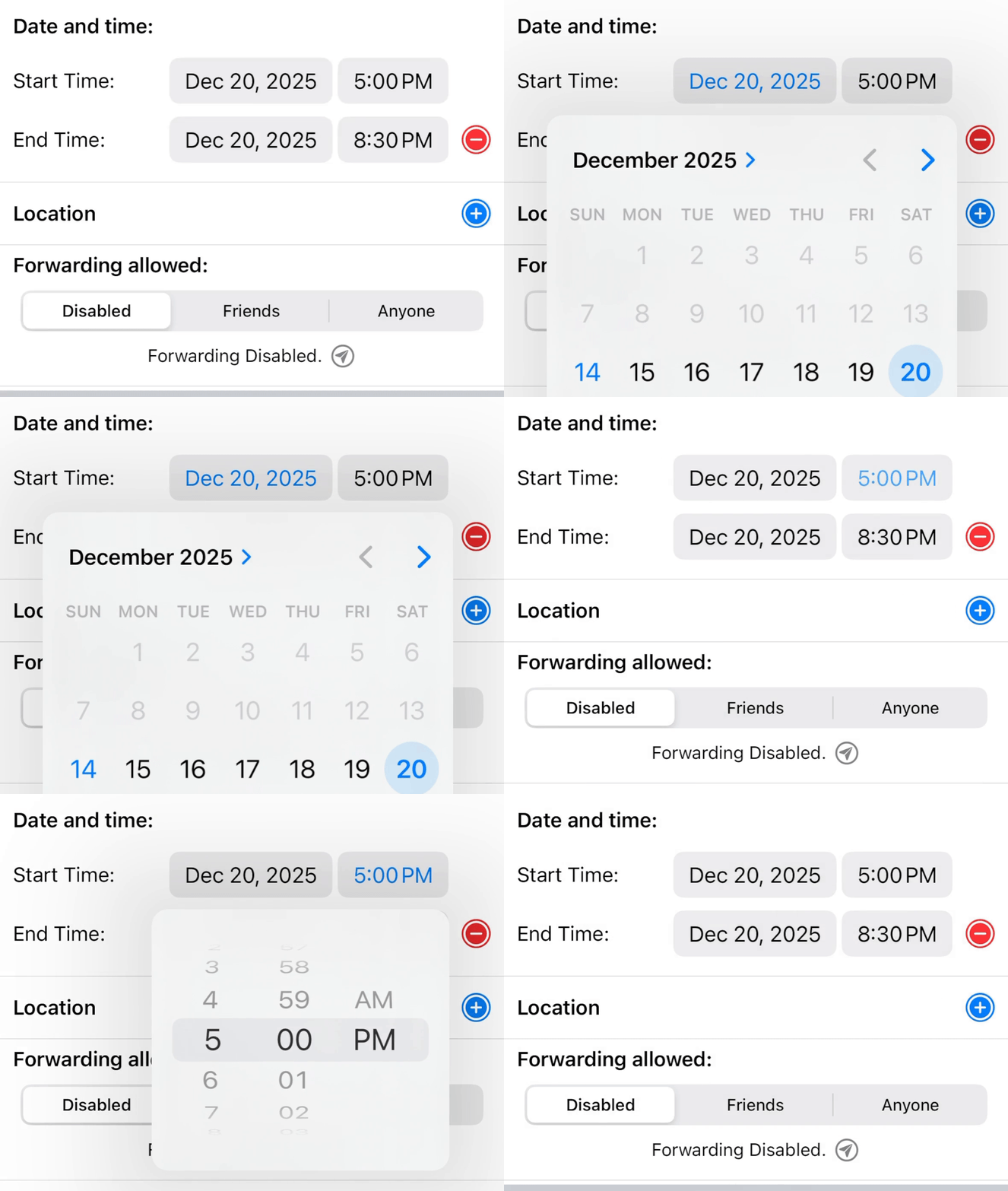
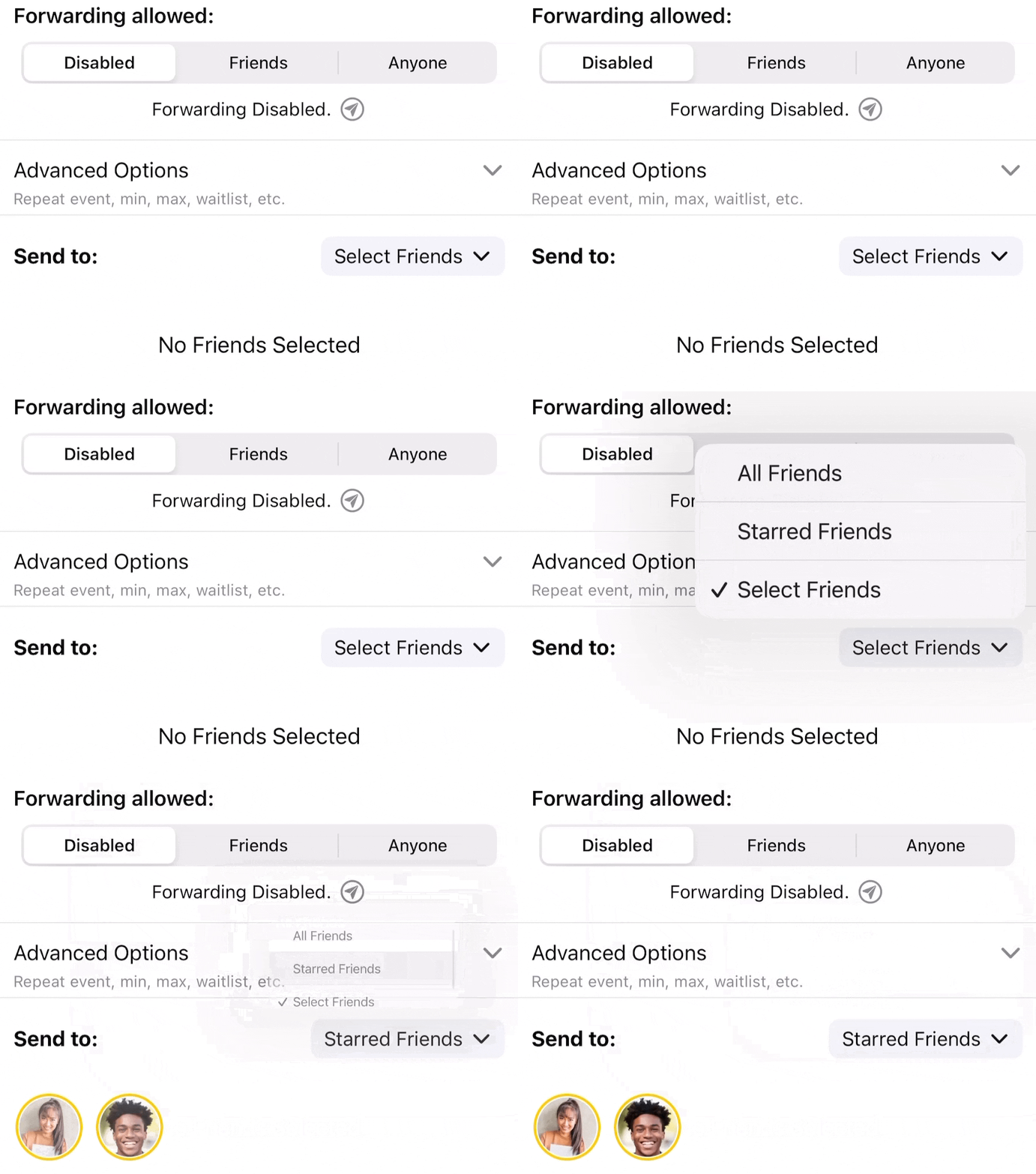
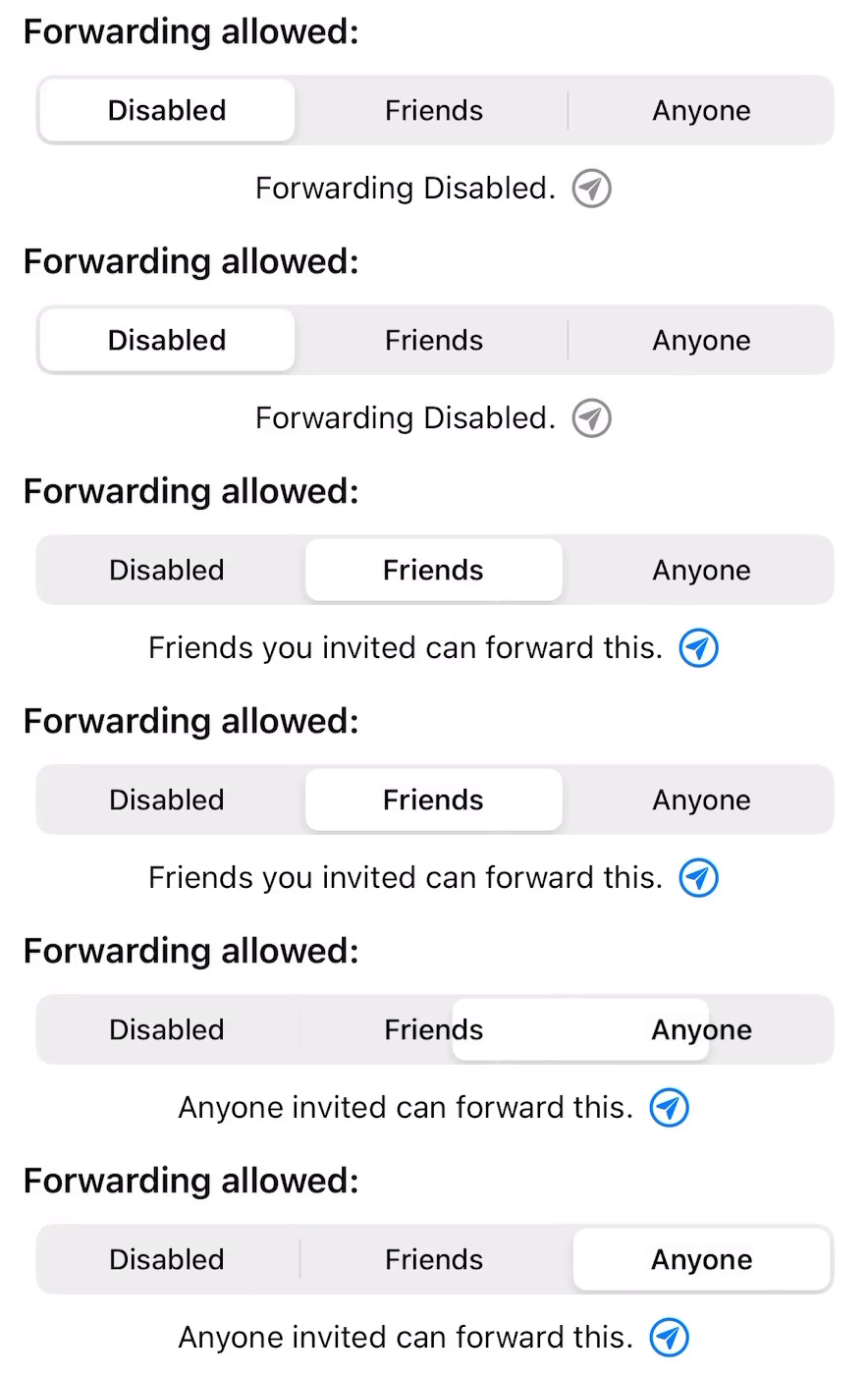
Select who can forward the Event.
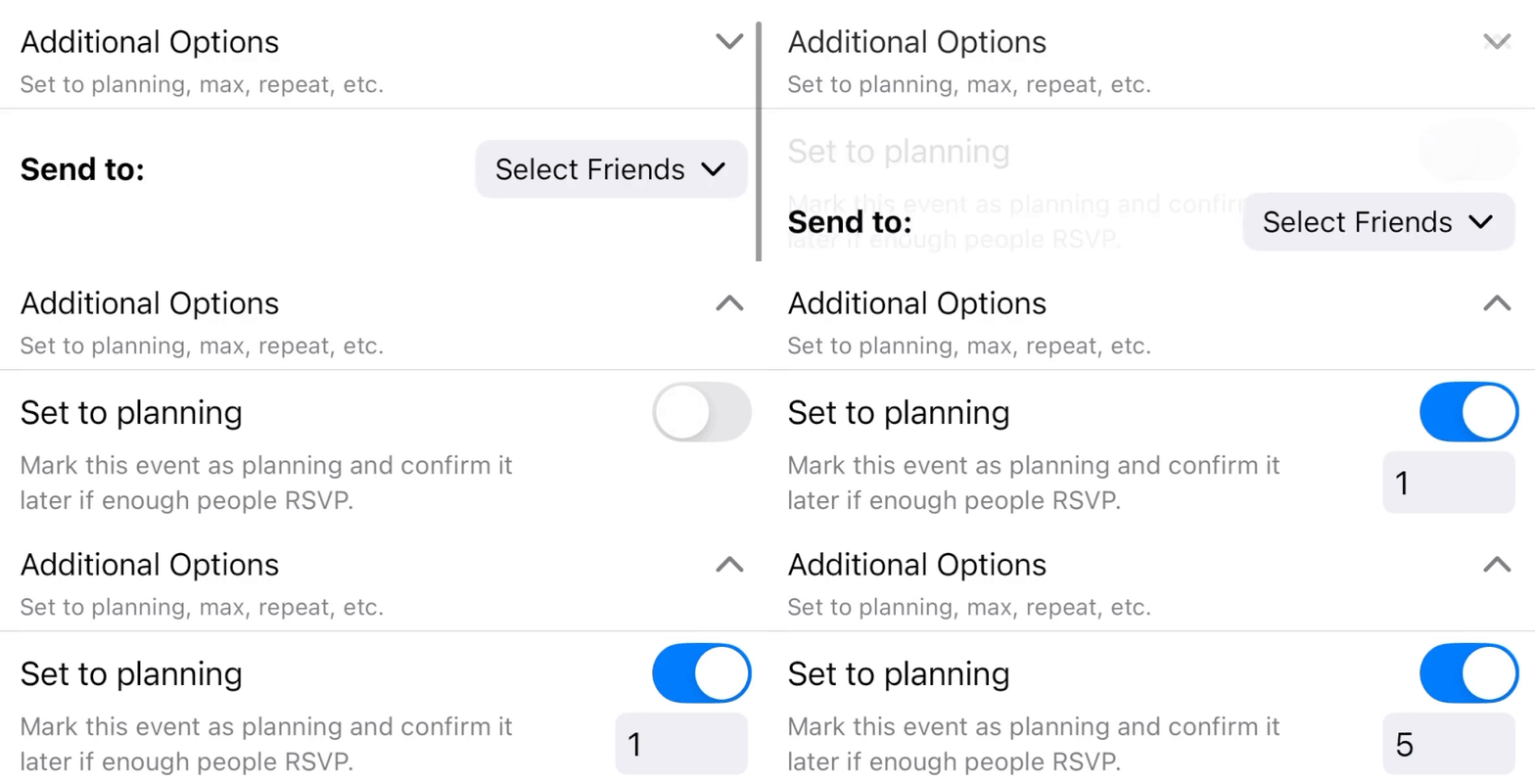
Set the Event to planning until a minimum RSVP is reached. Your friends will be notified when you confirm the event.
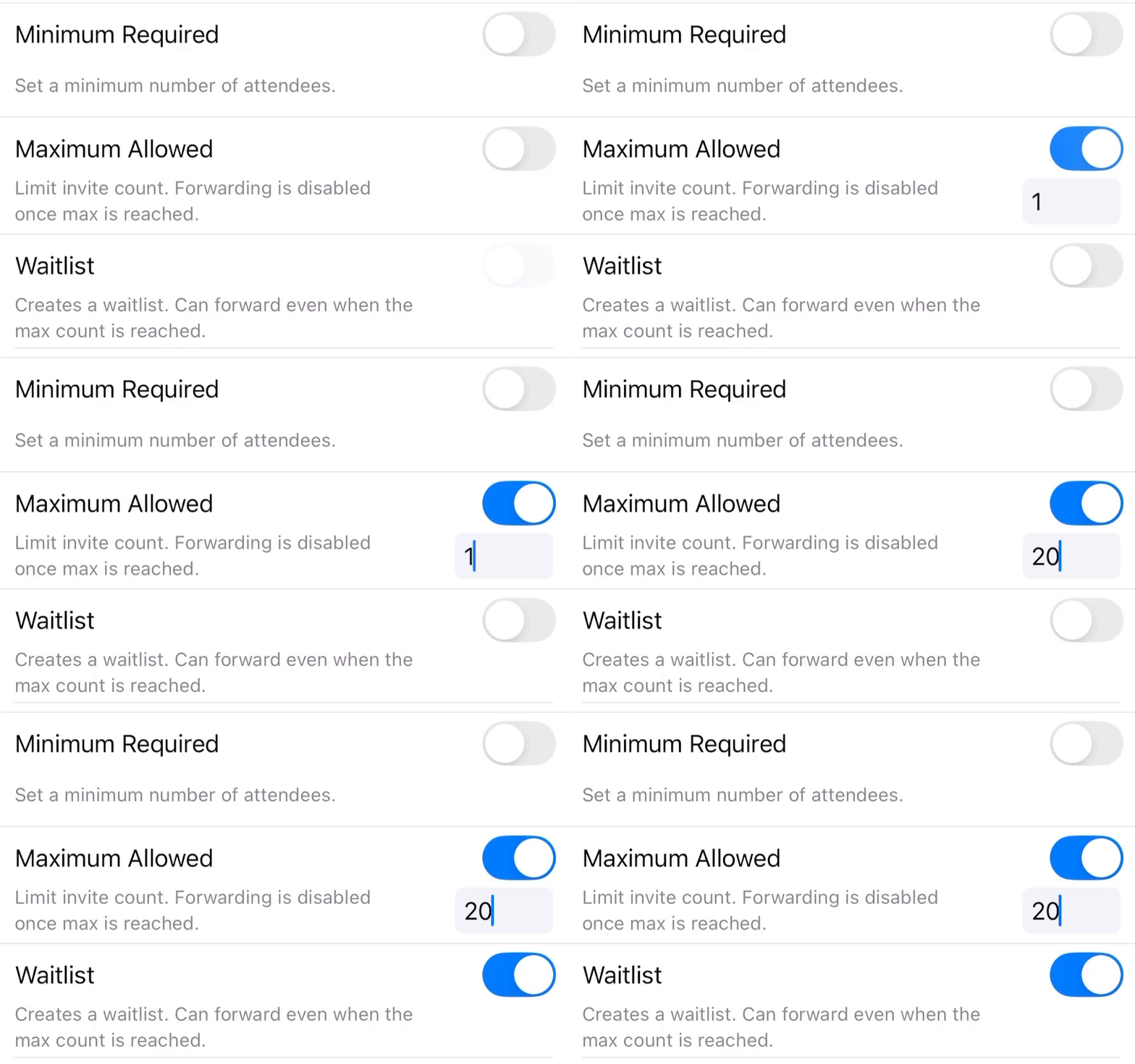
Set a maximum RSVP and enable a waitlist.
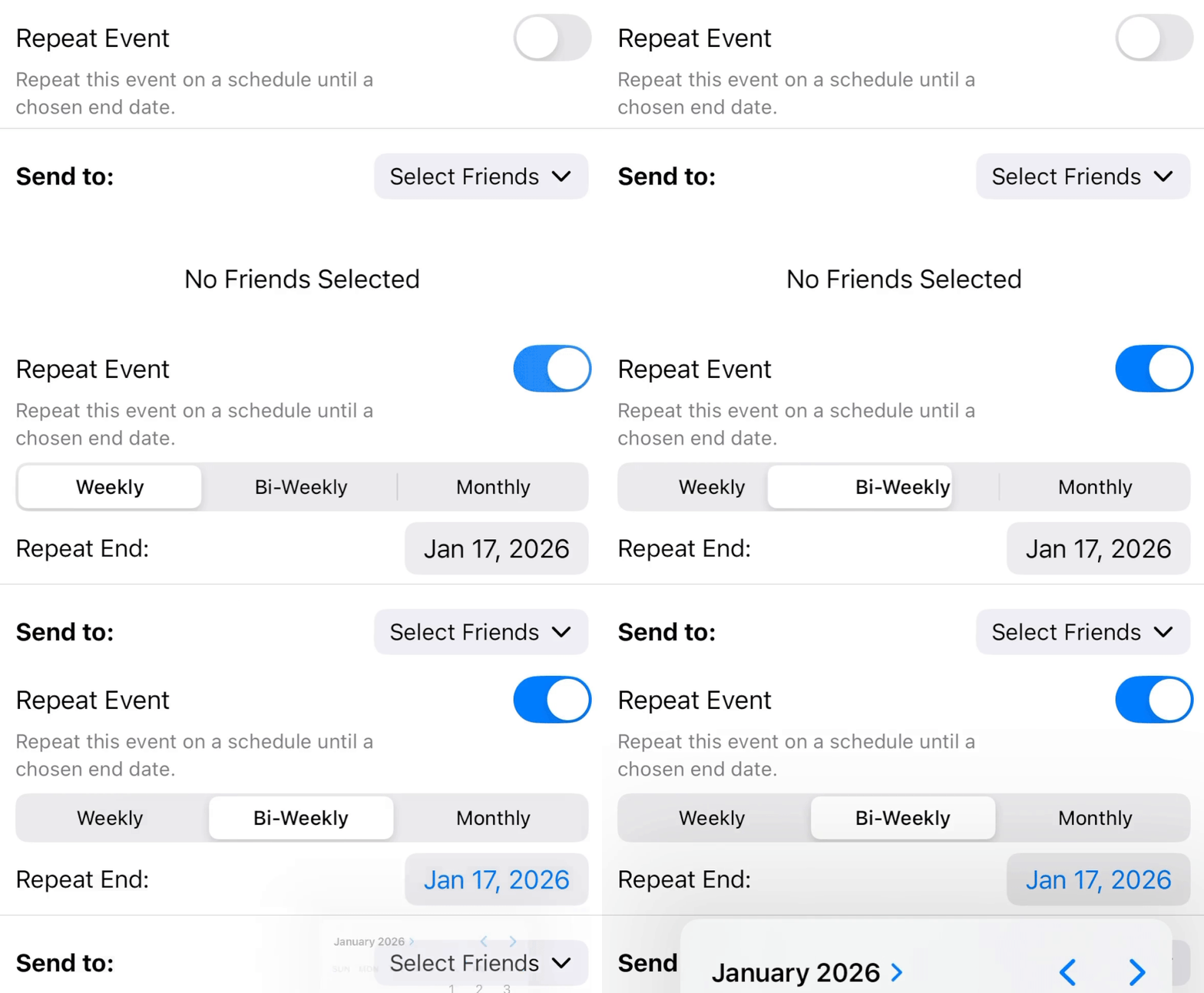
Set the Event to repeat if you meet regularly.
Events display on your friend's timeline with a gray badge when it's in planning and a red badge when its confirmed. The arrow in the bottom right indicates if the Event can be forwarded. Blue is allowed. Gray is not allowed. Click on an event to go to the landing page.
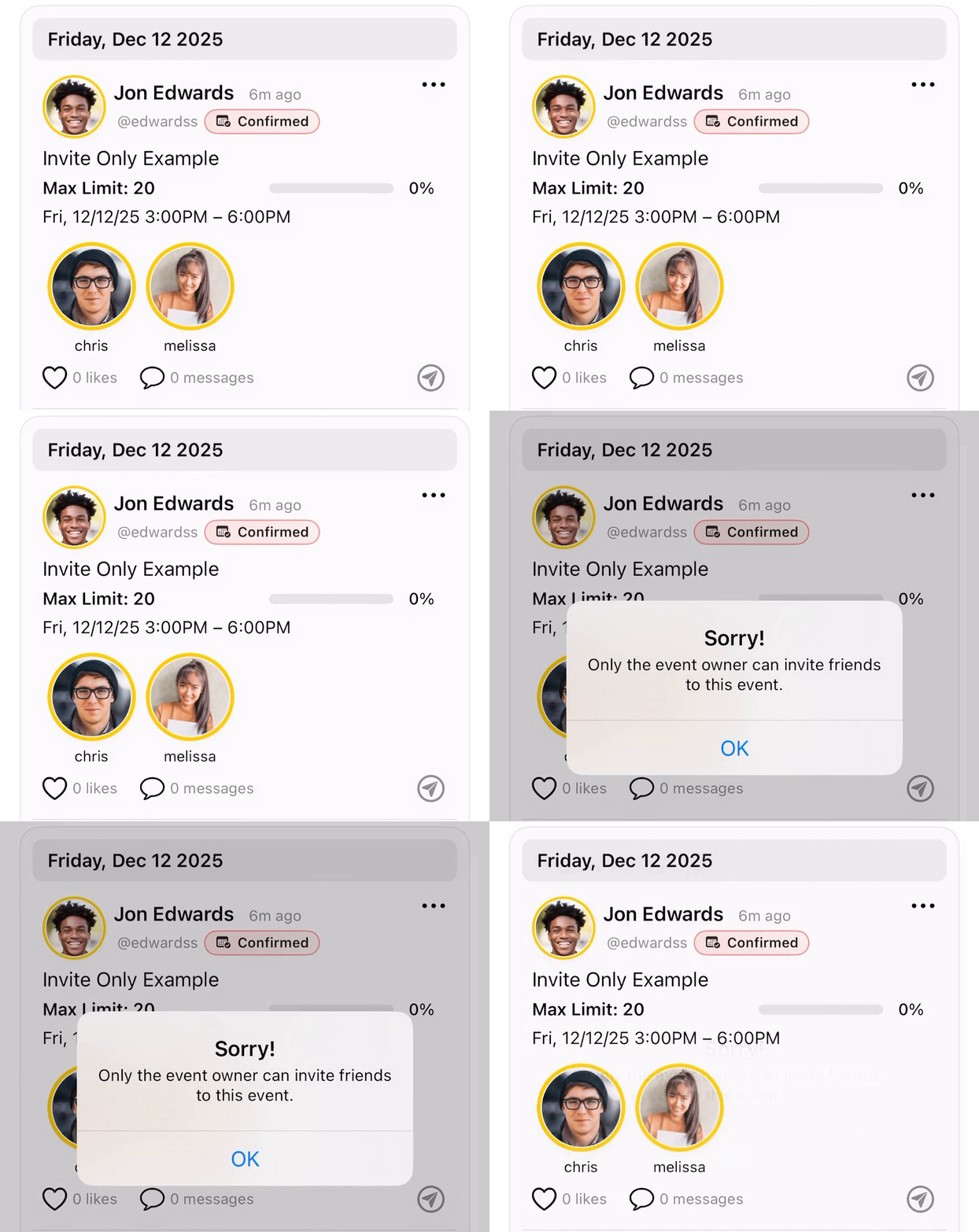
Friends can RSVP as Going, Maybe, or Can’t Go.

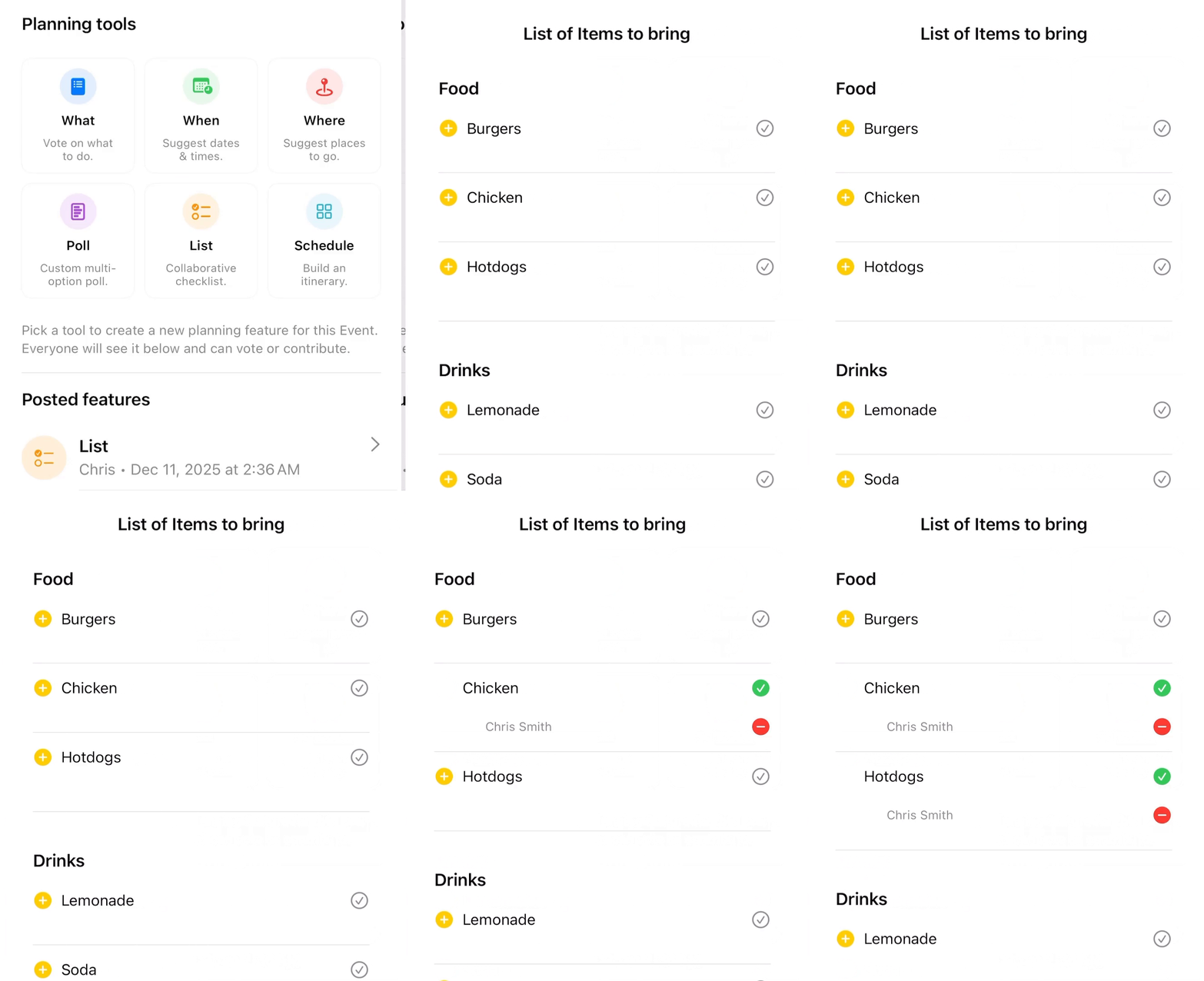
Use tools to assist with planning and organizing such as Messages, Polls, Lists, Agendas, and Photo Albums. If your Event time changes, friends will automatically be notified to RSVP again.
Ideas gives groups a dedicated calendar and message thread. Group posts are only available to group members.
To create a group, tap the yellow plus icon on the groups tab.
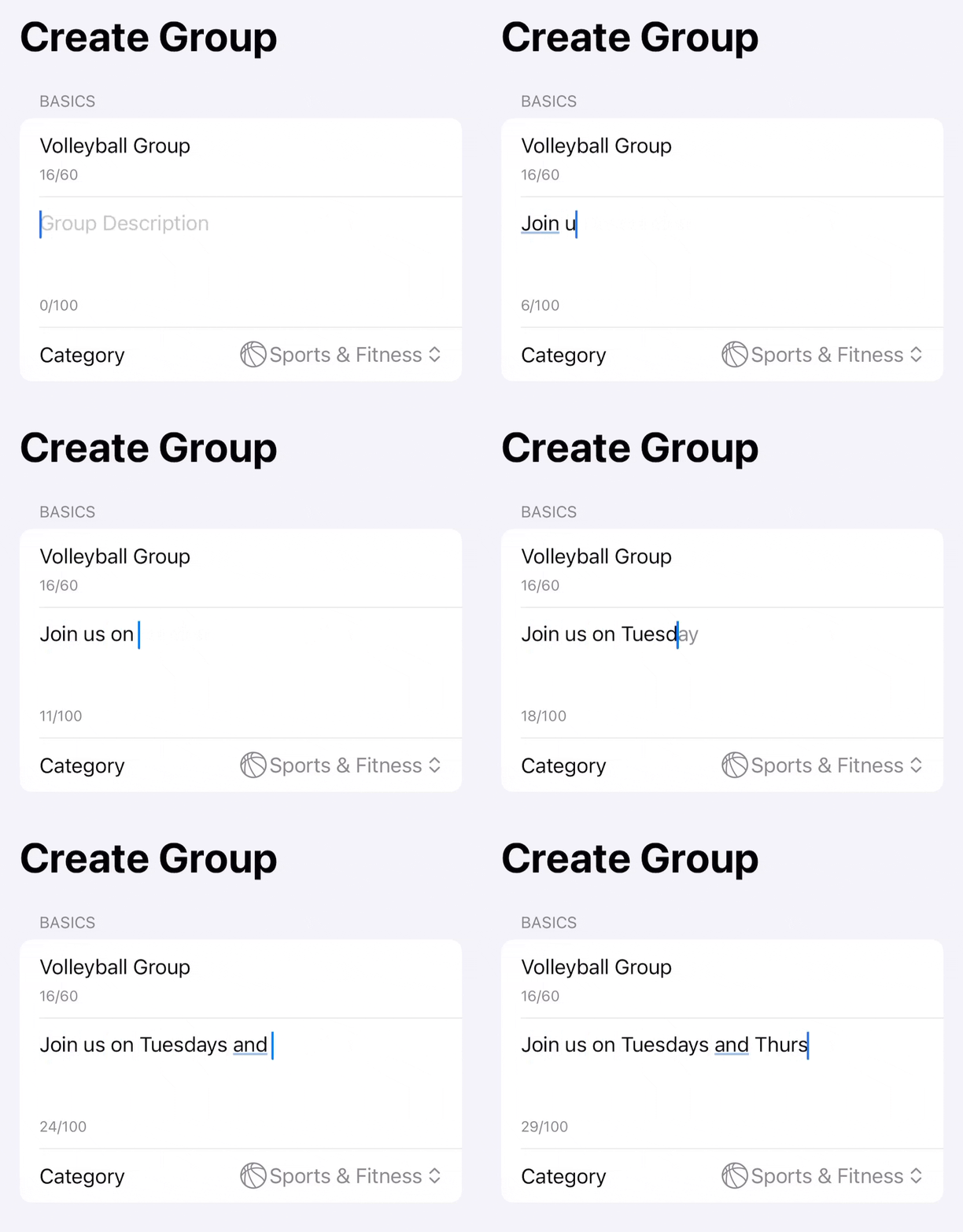
Set your group access to invite only or allow new members to join automatically. Anyone on Ideas can request to join a public group.

A public group is searchable by name, description, and hashtags. Add up to 5 hashtags for a group.

Tap on a group in the groups tab to navigate to the landing page.
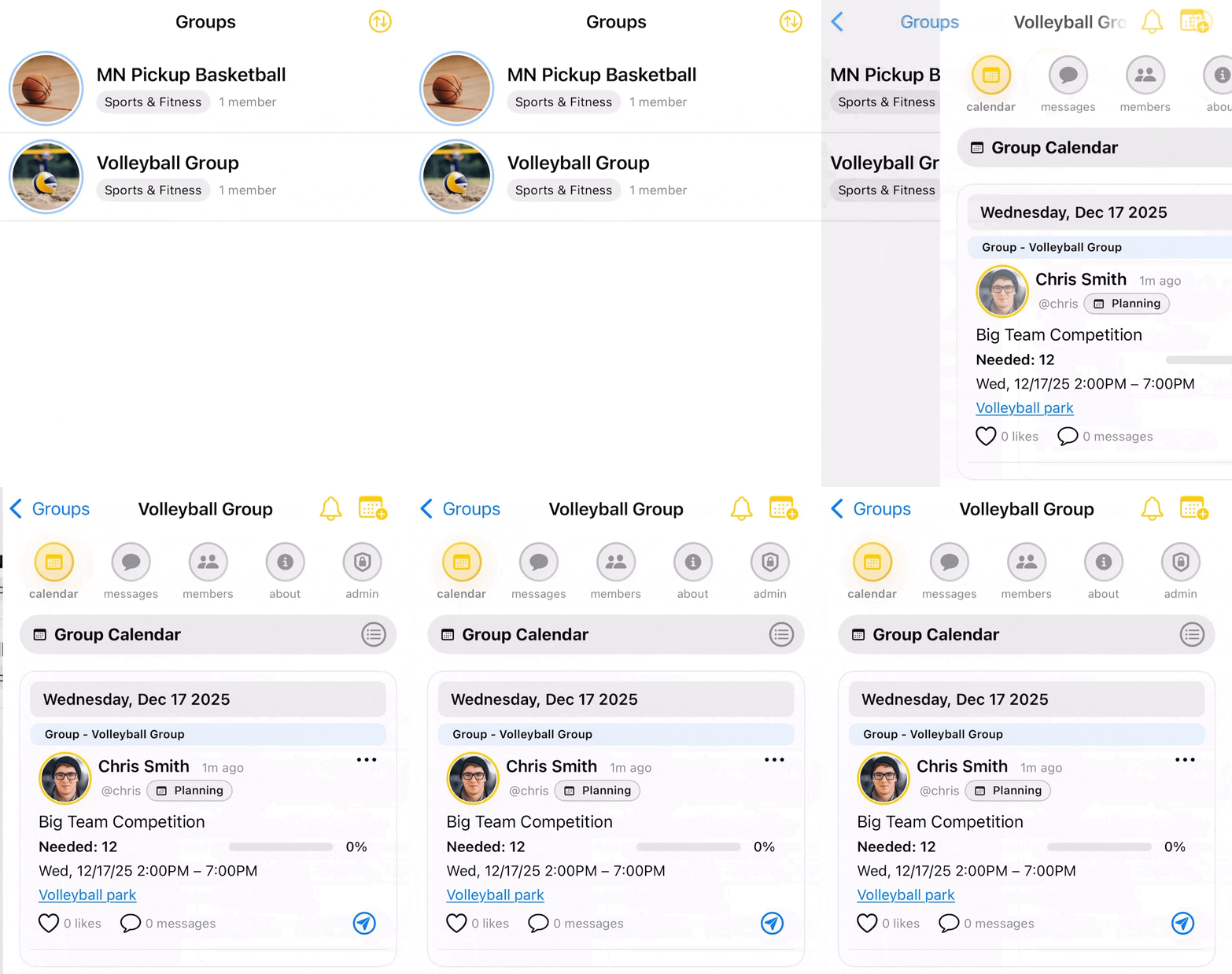
Posts created on a group calendar will be visible to all group members.
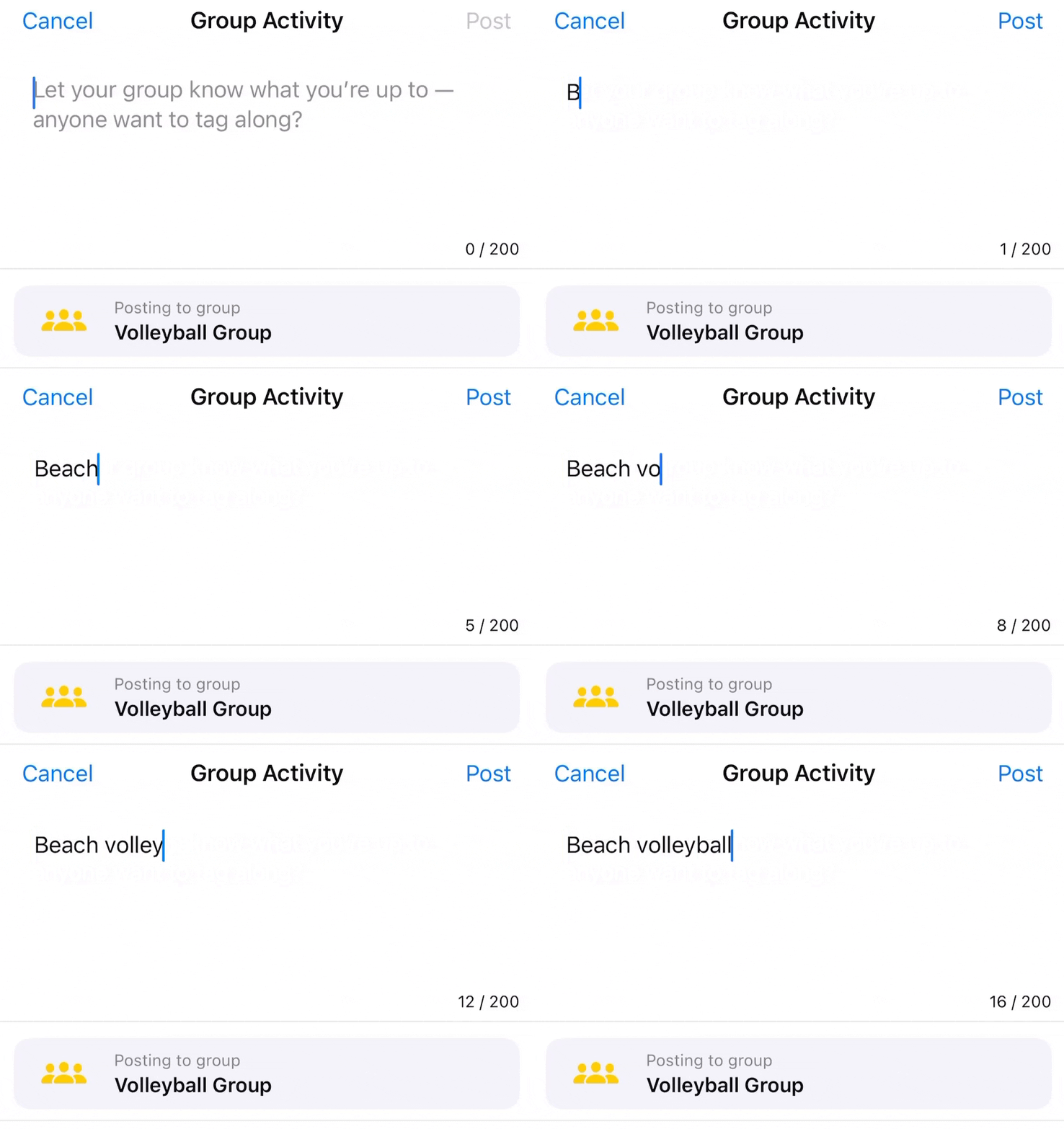
Use the members tab to adjust roles. Changing a member role requires "Change Role permissions" and requires one level above the member role being assigning.
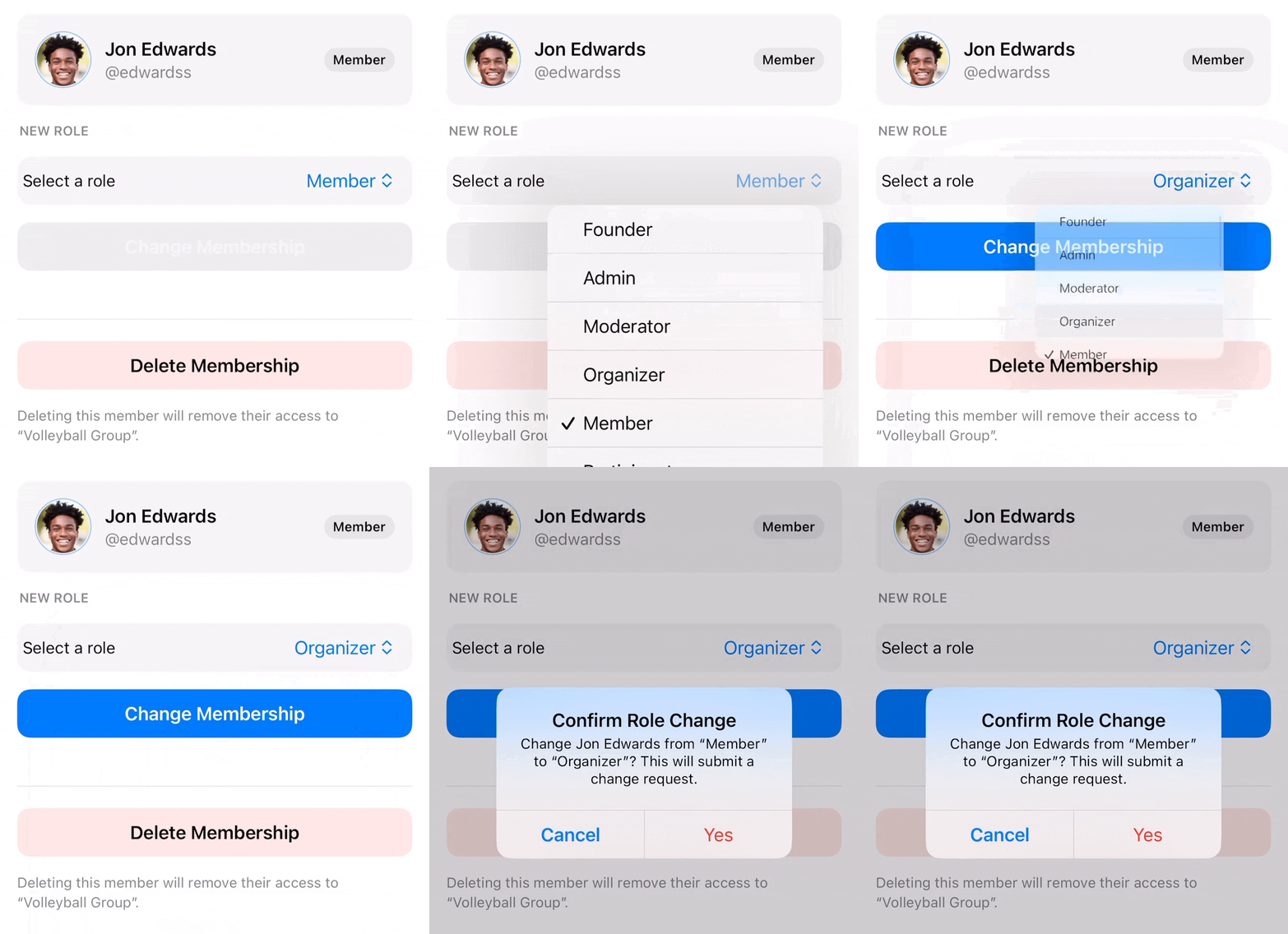
Adjust permissions for your group in the members tab by tapping the settings gear icon. Select a default role for new members who join the group and assign custom permissions for creating posts, moderating content, inviting members, and accessing the admin chat.
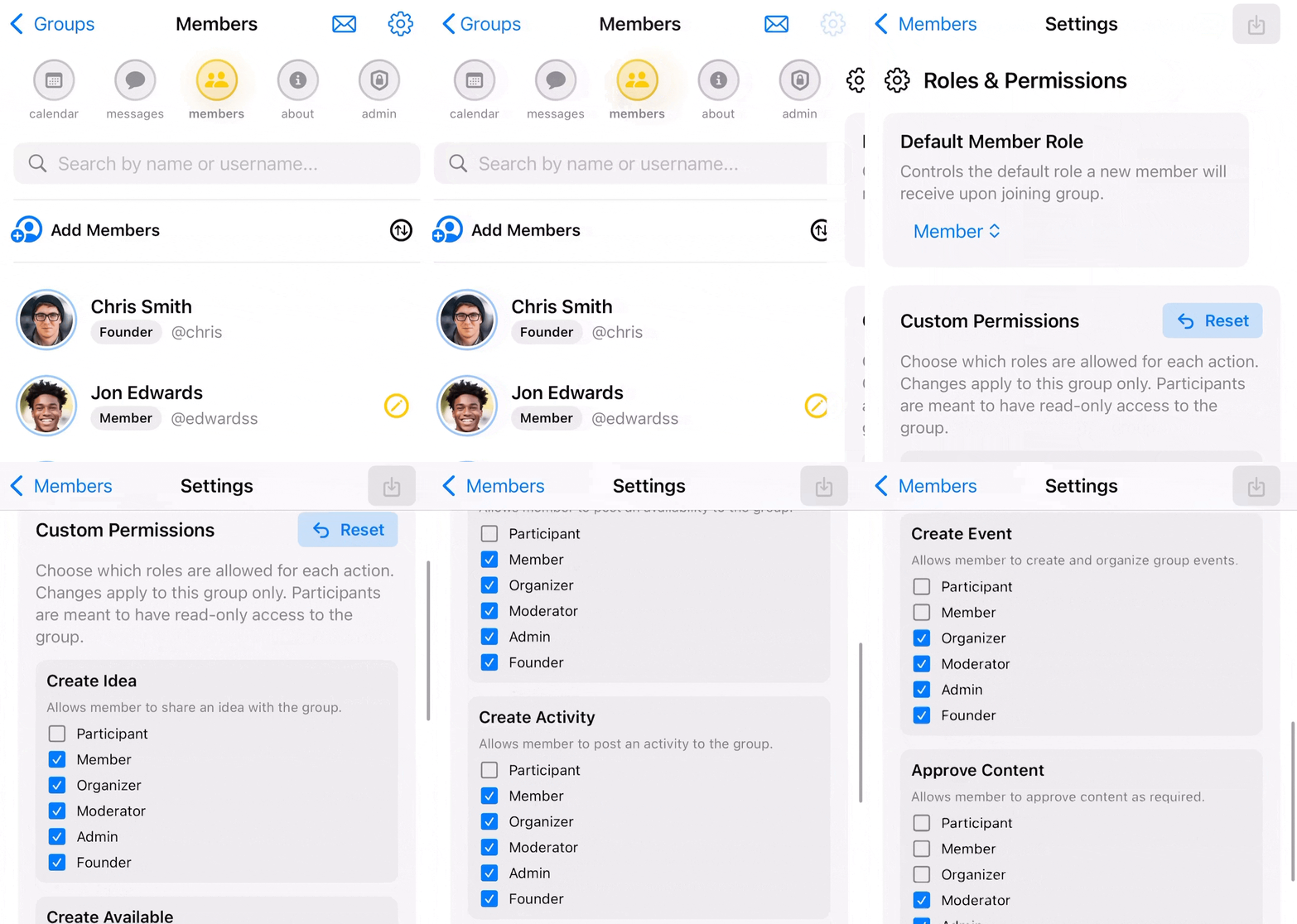
Custom permissions can only be changed by the Founder and Admin. Fixed permissions cannot be changed. Only the Founder can edit or delete the group.

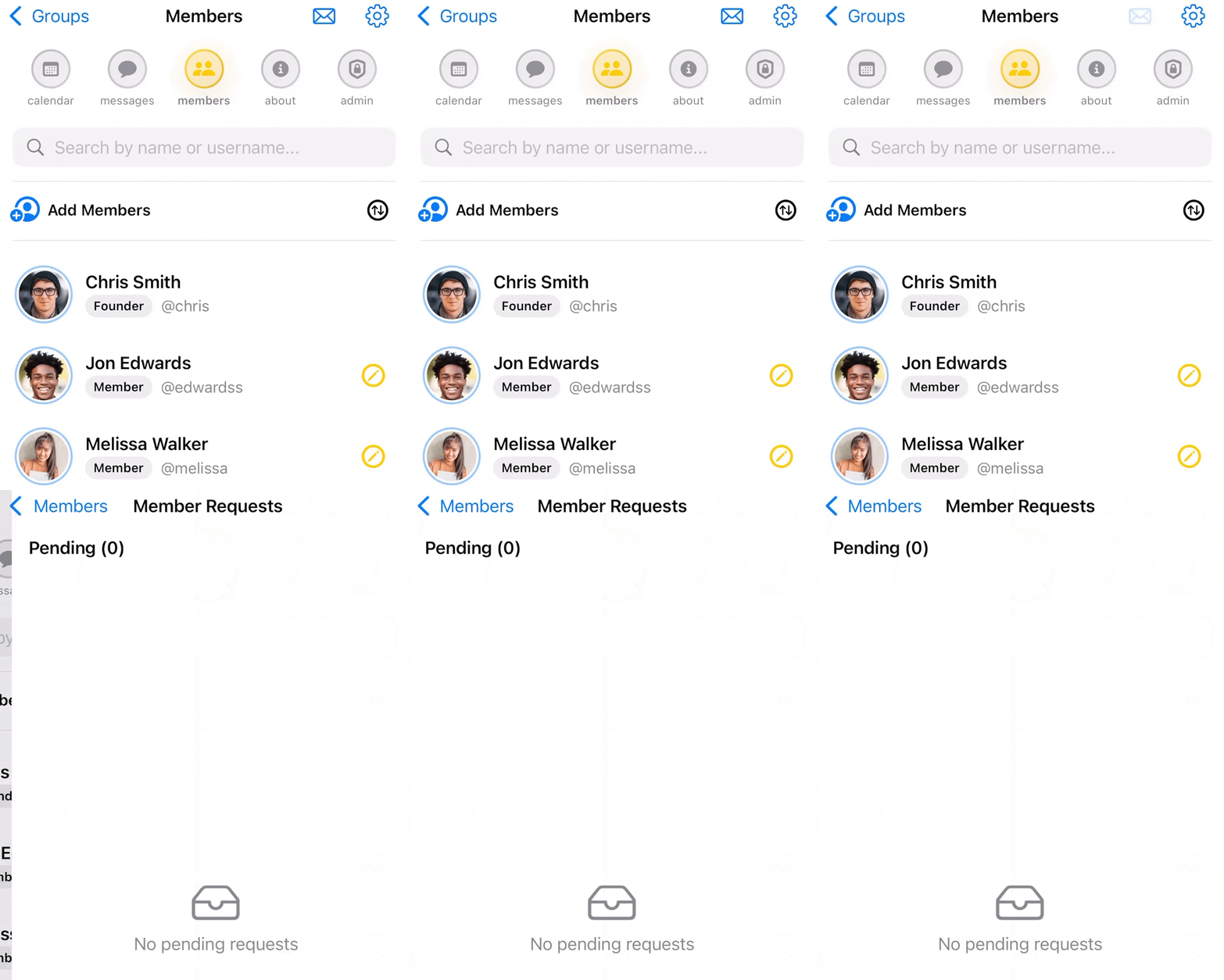
Requests to join a group are found in the notifications tab or the group members tab on the landing page.
The About tab shows the group details along with each member's role and their permissions.
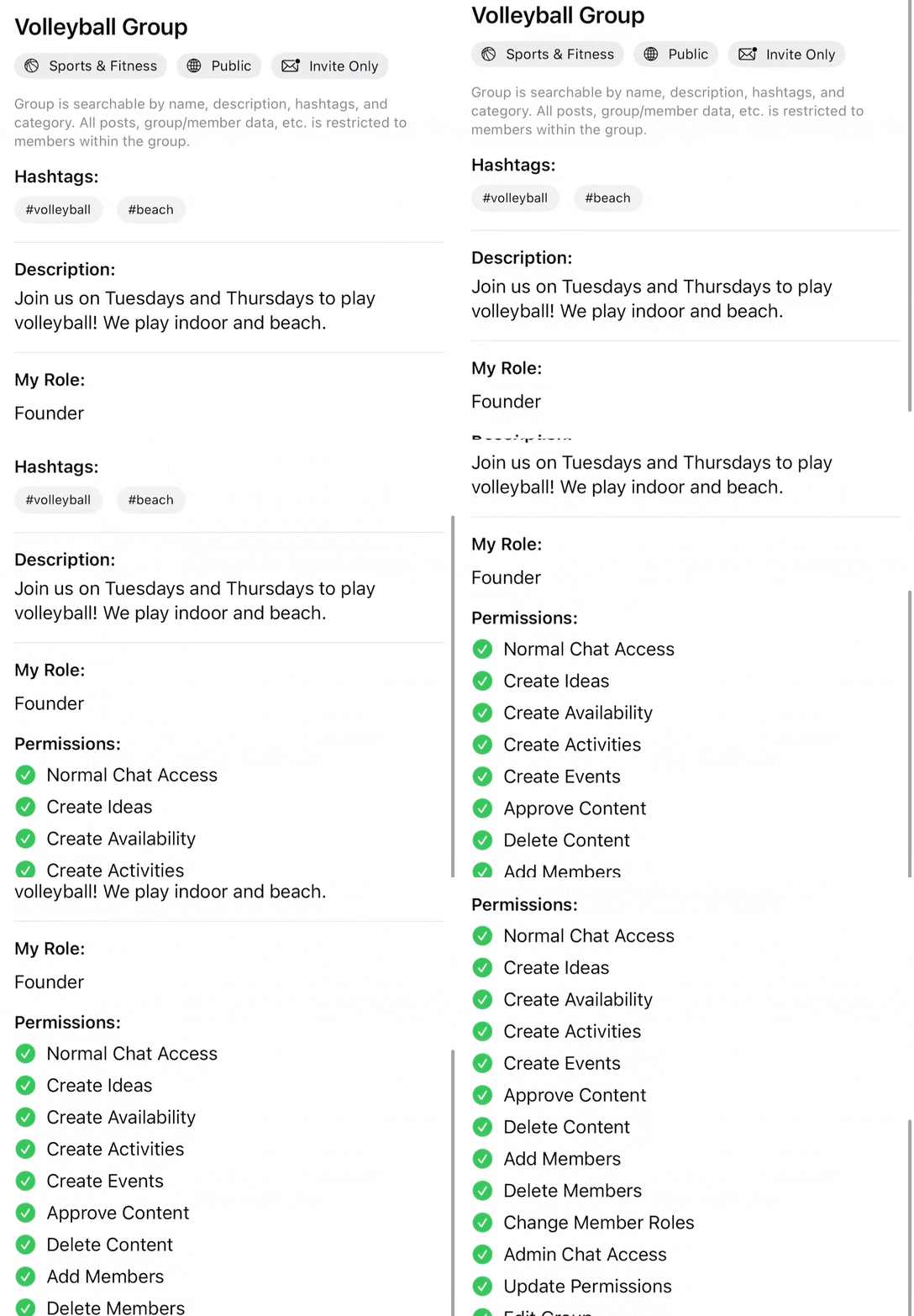
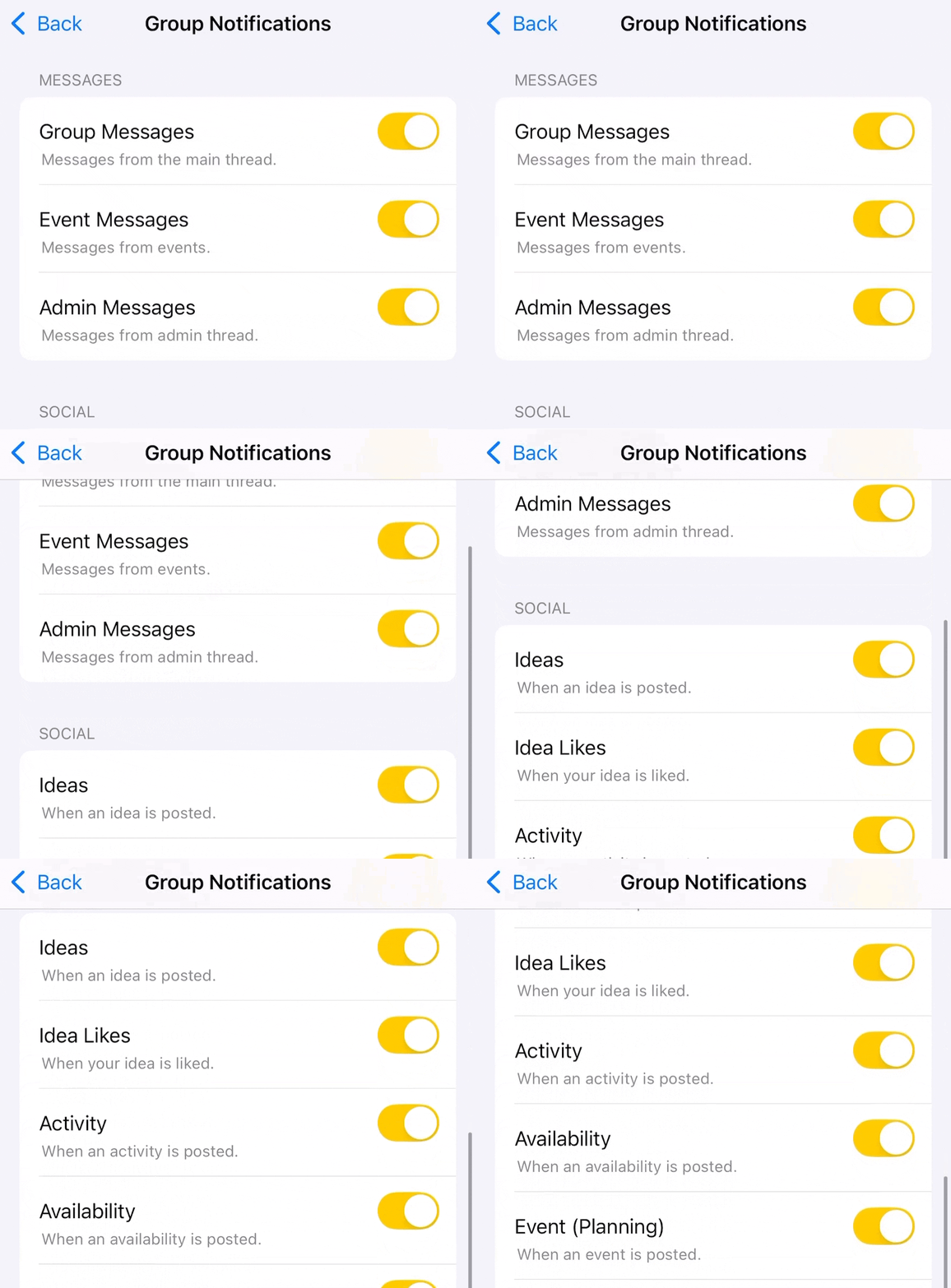
Set notifications per group using the notification icon. Notifications can be set for messages, types of posts, and member requests.
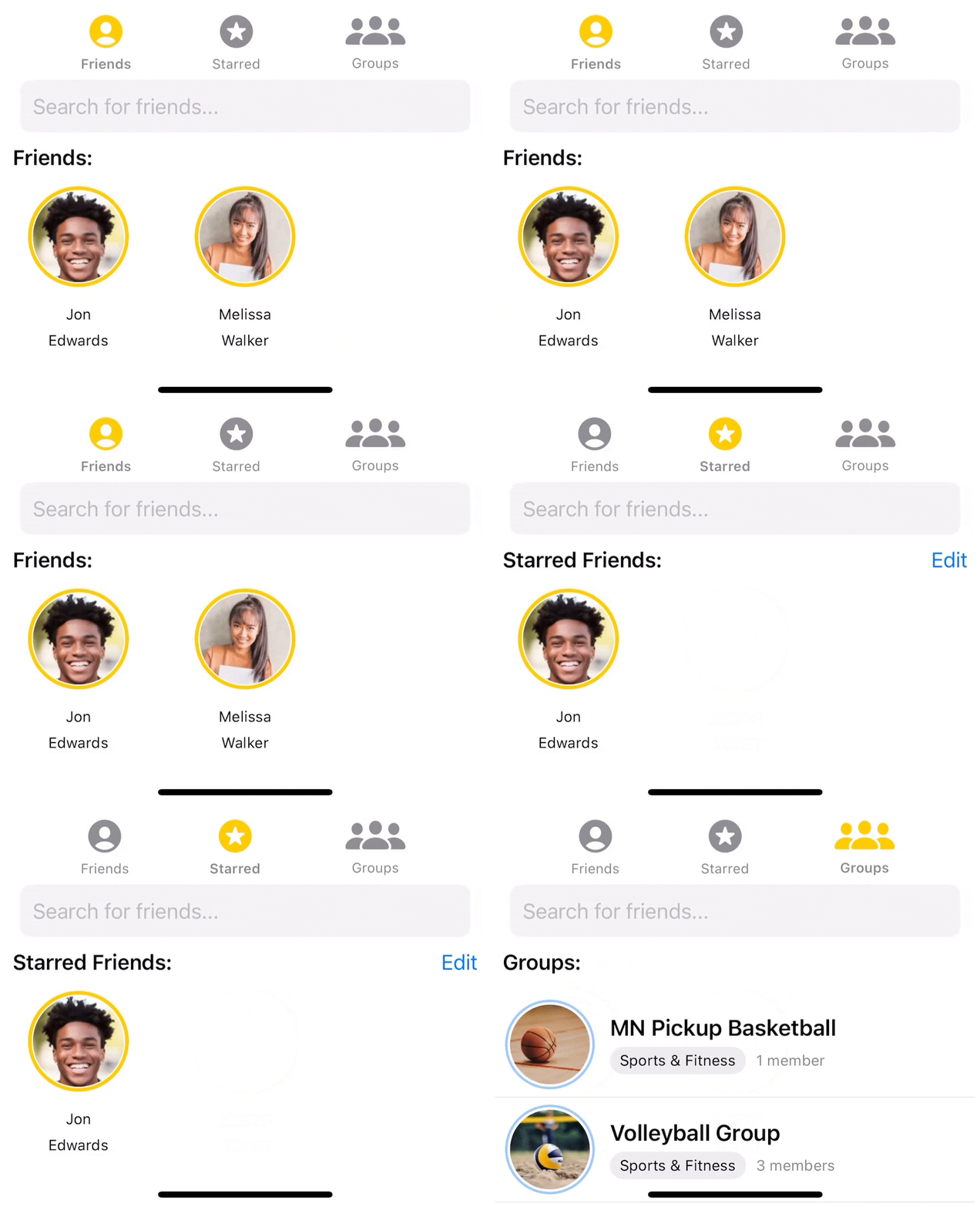
To post to a group calendar from the Home Screen, select from the Group tab which shows all groups you belong to. You can also post to the group from the Calendar tab on the group landing page.
Don't forget to sync all your groups to your main calendar by clicking on "My Groups" after tapping on your Profile icon on the Home screen.
Calendar
Tap the gold calendar icon on the Home screen to open up the main calendar or filter posts.
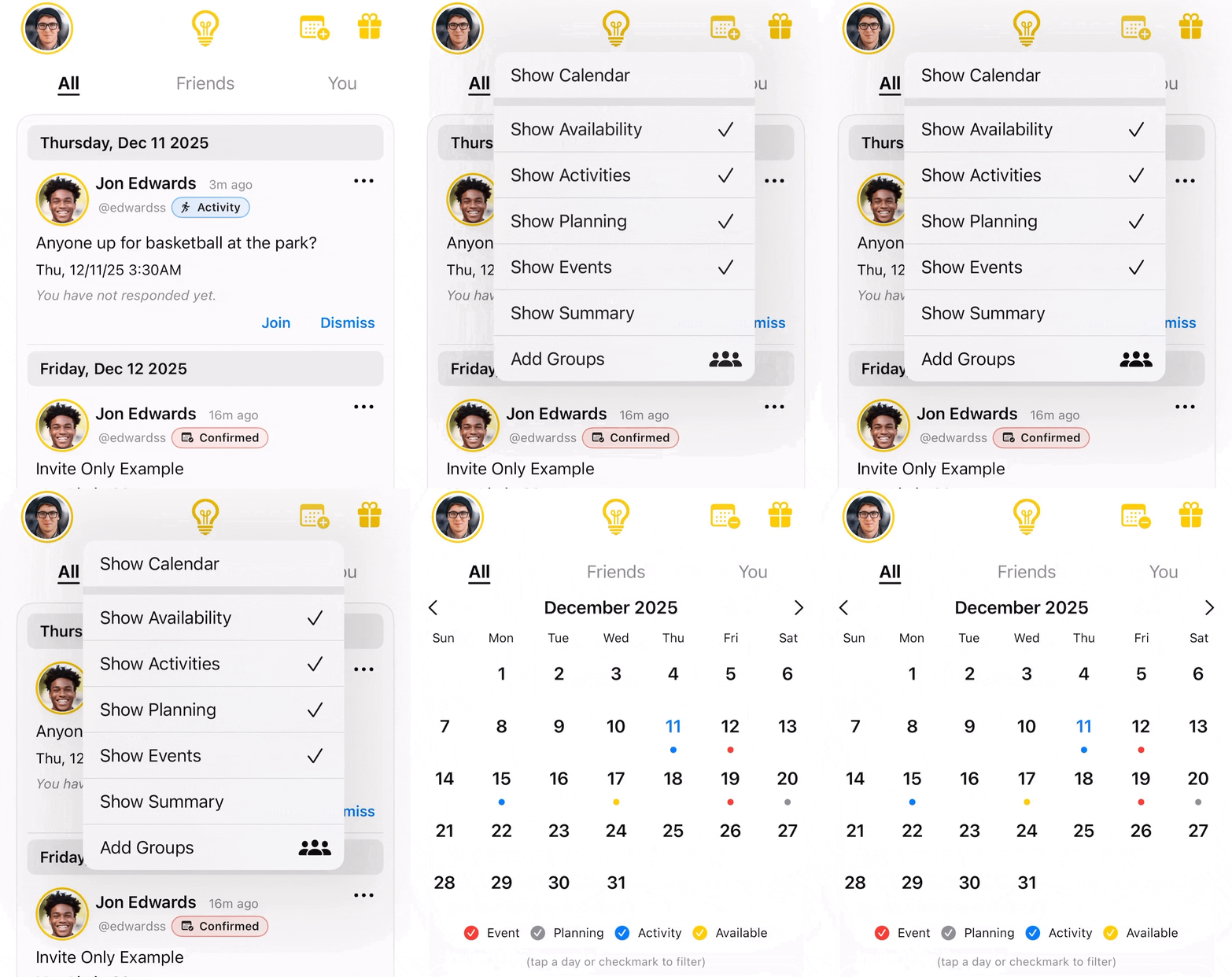
Posts can also be filtered by using the checkmarks at the bottom of the calendar.
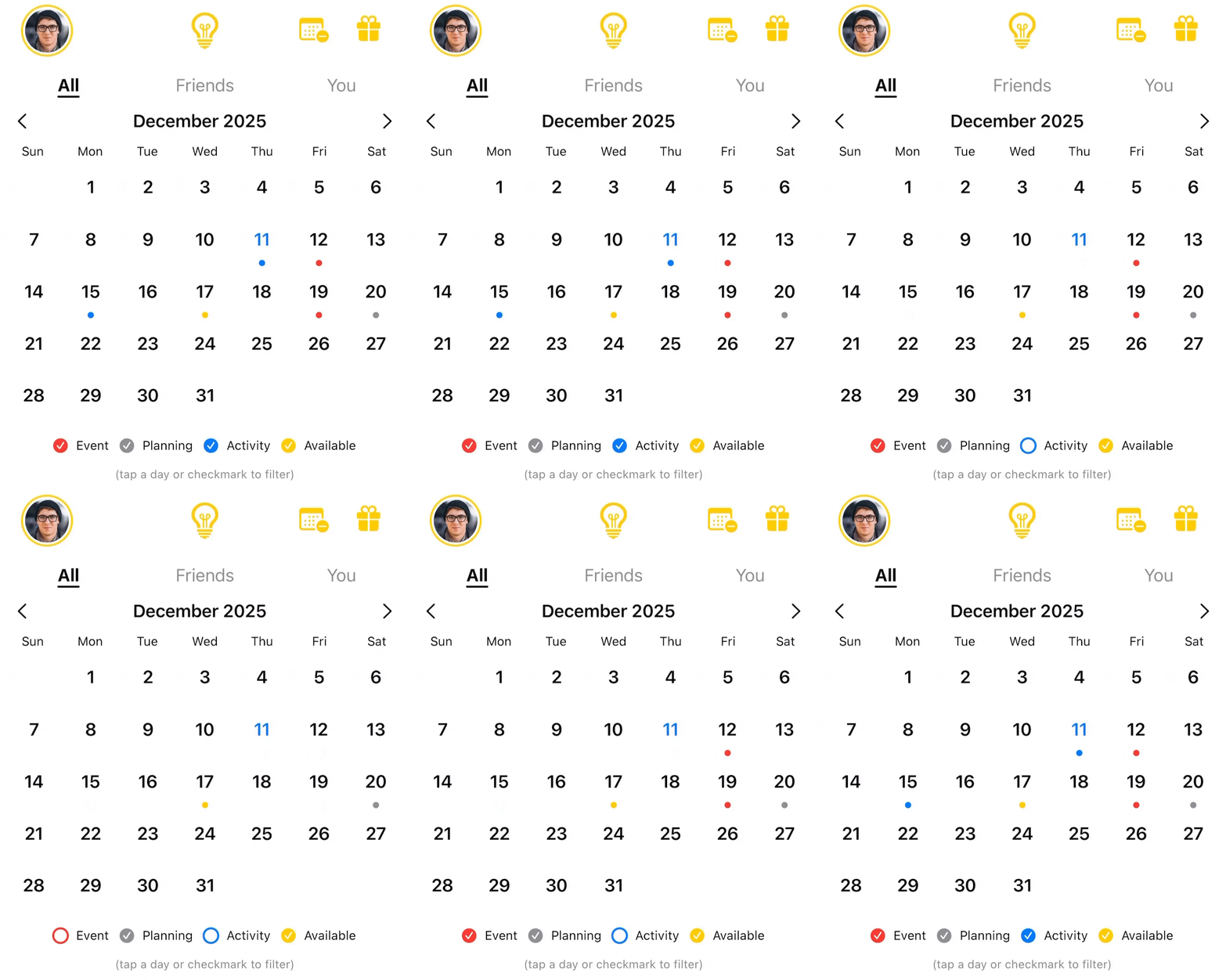
Select a specific day on the calendar to show posts for that day only. The All tab shows posts from you, your friends, and your groups. Use the You tab to view only your own posts.

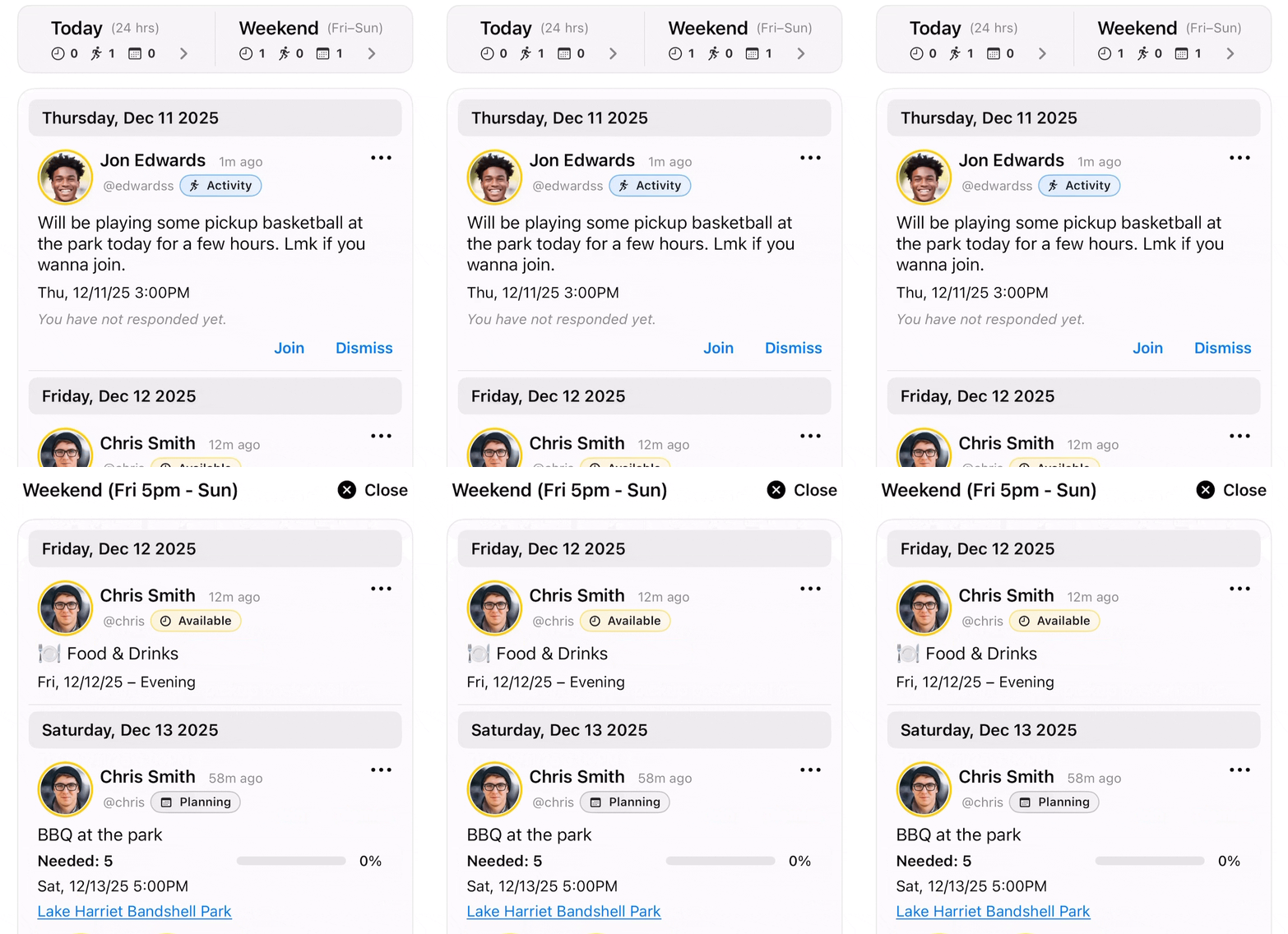
Show Summary gives all the posts for the current day or for the upcoming weekend (Friday 5pm - Sunday) when selected.
Friends
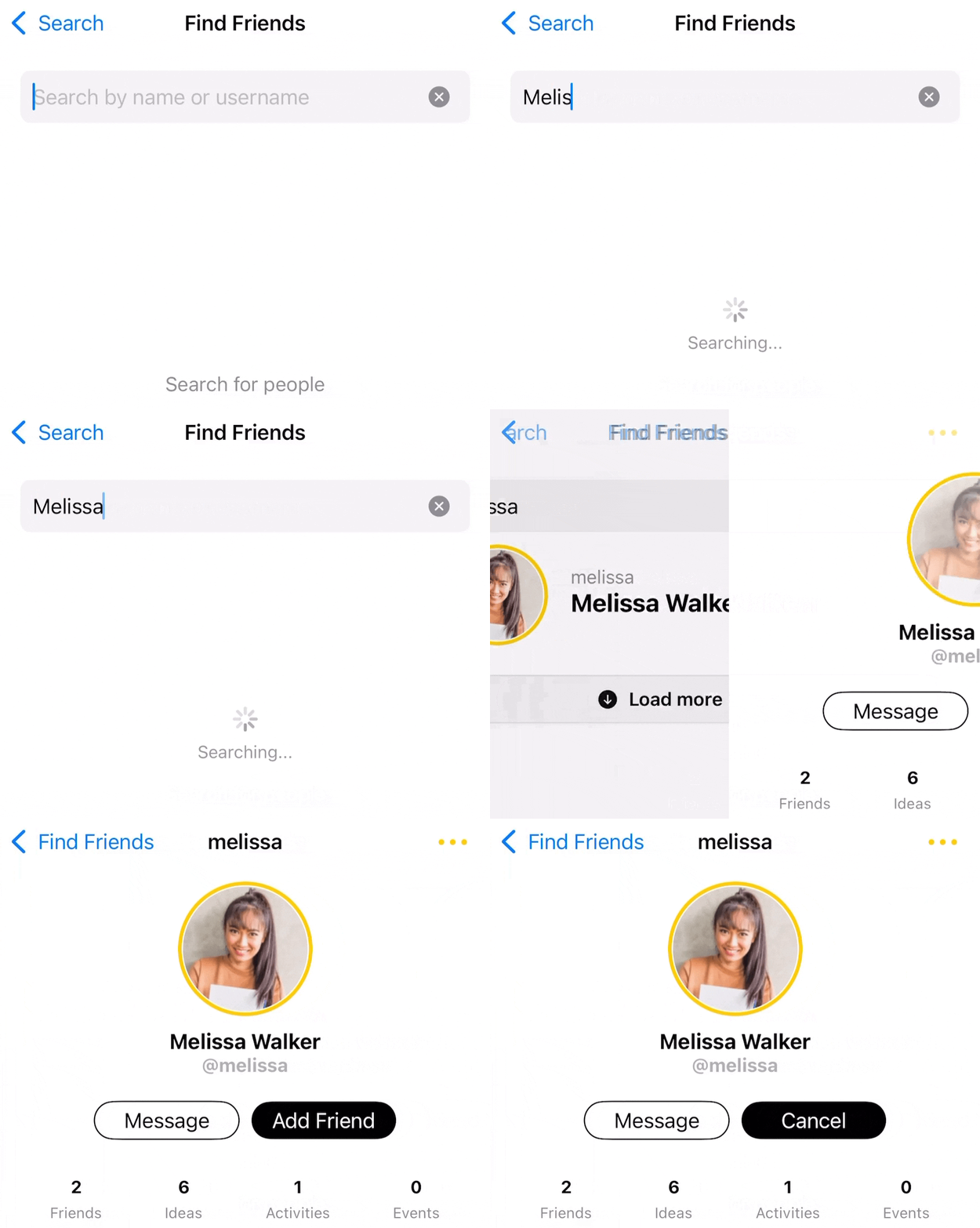
Find other people on Ideas by using the search tab and clicking on Find Friends.

Search for someone by their name or username. Click their profile and tap the "Add Friend" button.
Keep a list of starred friends to make the selection process easier.
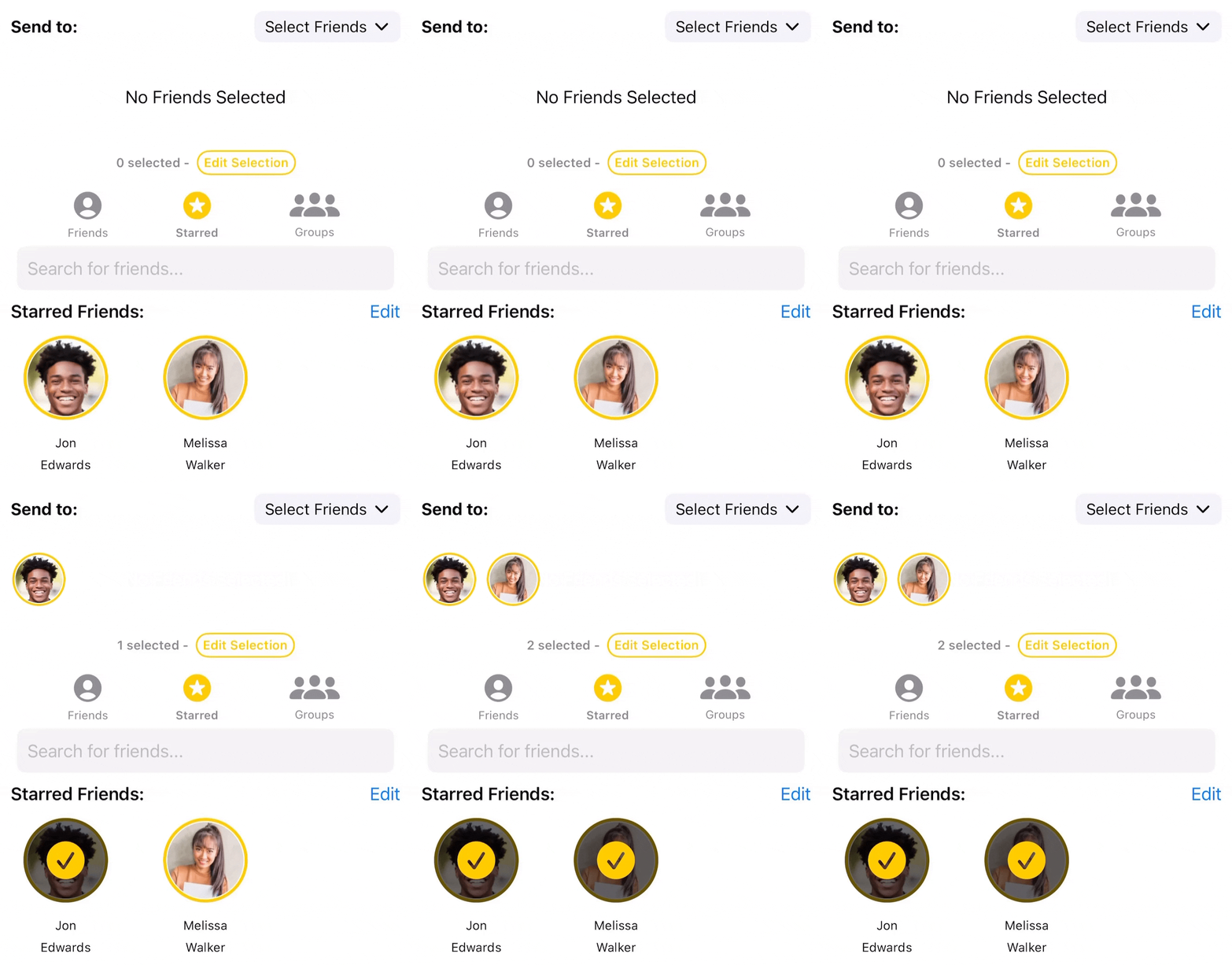
Use the dropdown to select all starred friends.